Voucher flow using the flow builder
About this article
Create advanced promotions using flexible, visual logic. The Voucher Flow Builder is Centra’s visual interface for configuring voucher rules. It allows you to design promotion logic using a flowchart-style layout, offering greater clarity and flexibility than the existing Actions list. Both configurations are fully supported, and you may configure vouchers using whichever interface best fits your workflow. Vouchers remain compatible across both interfaces.
What the Flow Builder does
The Flow Builder provides a structured, visual method for setting up voucher criteria and results. Instead of working through a static list of actions, you create a sequence of cards arranged in one or more flows. Each flow determines which customers and products qualify for the voucher and what discount is applied.
Use the Flow Builder to:
- Build simple or advanced promotion logic
- Filter products step-by-step
- Apply conditions based on order details or specific customers
- Run parallel flows and let Centra determine which discount applies
- Understand complex voucher criteria more easily than in Actions
Flow Builder and Actions: How They Work Together
Key points:
- You can open and edit any voucher in either interface
- Changes made in one interface appear in the other
- Existing vouchers built in Actions do not require migration
- Flow Builder is an alternative, more visual configuration experience.When you open vouchers originally built using voucher Actions, the Flow Builder makes it easier to understand what each criteria does and how it affects the voucher by representing in flow view .
If you open a voucher originally created using Actions, the Flow Builder will translate the configuration into a visual sequence of cards to make the logic easier to follow.
Flow Types
In the Flow Builder, you can structure your setup in two ways:
- A single flow containing multiple criteria and results
- Multiple flows for more advanced or segmented voucher logic
Single Flow
A single flow follows a top-to-bottom sequence. Each card filters or qualifies products and customers further as the flow continues.
Example sequence:
- Product filters
- Order conditions
- Customer conditions
- Result card
Only selections where products and customers satisfy all prior criteria will reach the result.
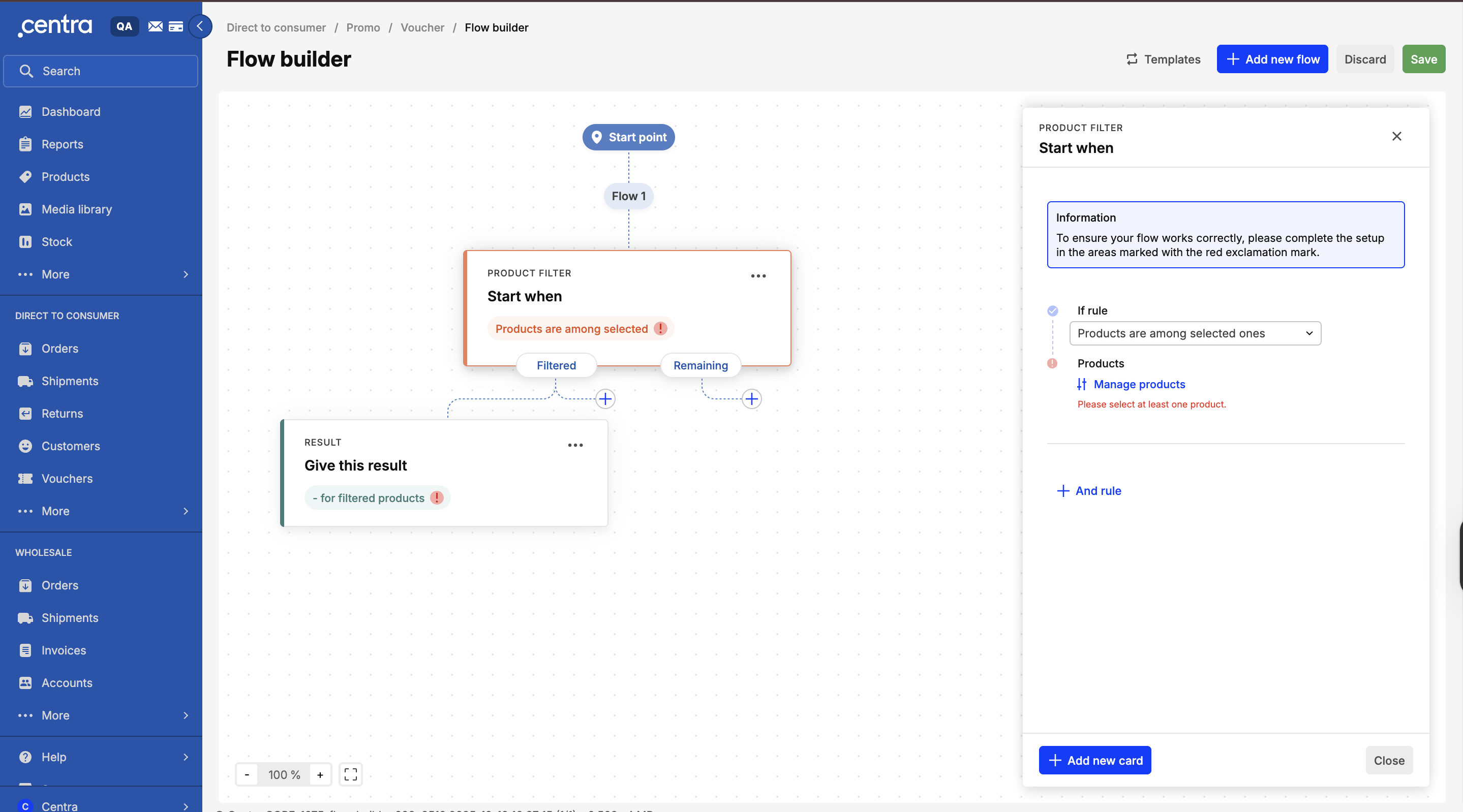
In a single flow, you can add a Result card immediately, which automatically creates an Always result flow. This option is useful when you want to apply a discount to all eligible products without adding any conditions. Using Always creates a voucher that applies the discount across all available products.
If you need to limit the discount to specific products, orders, or customers, you can replace the Always criteria with filter or condition cards by clicking the pencil icon next to Always.

Multiple Flows
Use multiple flows when different groups of products or customers should qualify for different discounts, or when you need to compare outcomes.
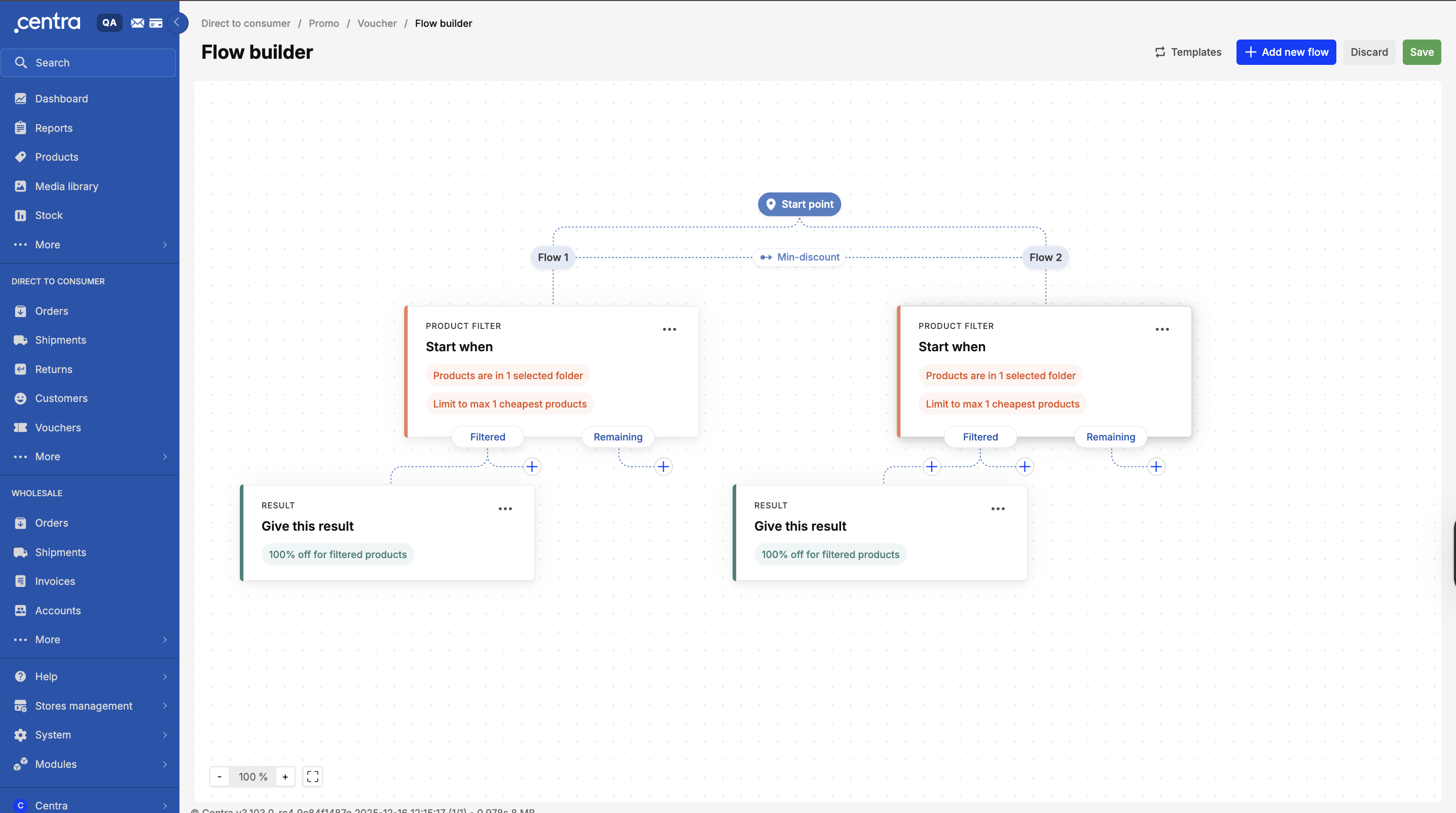
When creating multiple flows, select a connection type:
| Connection Type | Description |
|---|---|
| All-true | All flows must be fulfilled to apply the discount. |
| Any-true | Centra applies all fulfilled flows |
| Max-discount | Centra applies the flow that provides the highest discount for the customer. |
| Min-discount | Centra applies the flow that provides the lowest discount (best for the brand). |
These connection types replace the former Entry Point behavior.
Card Categories
Each flow is built using cards and the card order affects the outcome.
Product filters
Product filters define which products can be affected by the voucher. Available product filters rules:
| Rule Name | Previous Criteria Name | Direct to Consumer | Wholesale |
|---|---|---|---|
| Products among selected ones | Products | Yes | Yes |
| Products are not among selected ones | Exclude Products | Yes | Yes |
| Products are in selected folders | Folders | Yes | Yes |
| Products are not in selected folders | Exclude Folders | Yes | Yes |
| Products are in selected categories | Categories | Yes | Yes |
| Products are not in selected categories | Exclude Categories | Yes | Yes |
| Products are in groups (X of Y) | X of Y | Yes | Yes |
| Most expensive products | Costliest Products | Yes | Yes |
| Products are in campaign marked as sale | Products in Sale | Yes | Yes |
| Products are not in campaign marked as sale | Products not in Sale | Yes | Yes |
| Products are in campaign marked as news | Products in news | Yes | Yes |
| Products are not in campaign marked as new | Products not in news | Yes | Yes |
| Cheapest products | Yes | Yes | |
| Products not affected by higher priority voucher | Yes | Yes | |
| Value of selected products | Yes | Yes | |
| Number of selected products | Yes | Yes | |
| Products are not in selected delivery windows | Exclude Delivery Windows | No | Yes |
| Products are in selected delivery windows | Delivery Window | No | Yes |
Filtered vs. Remaining
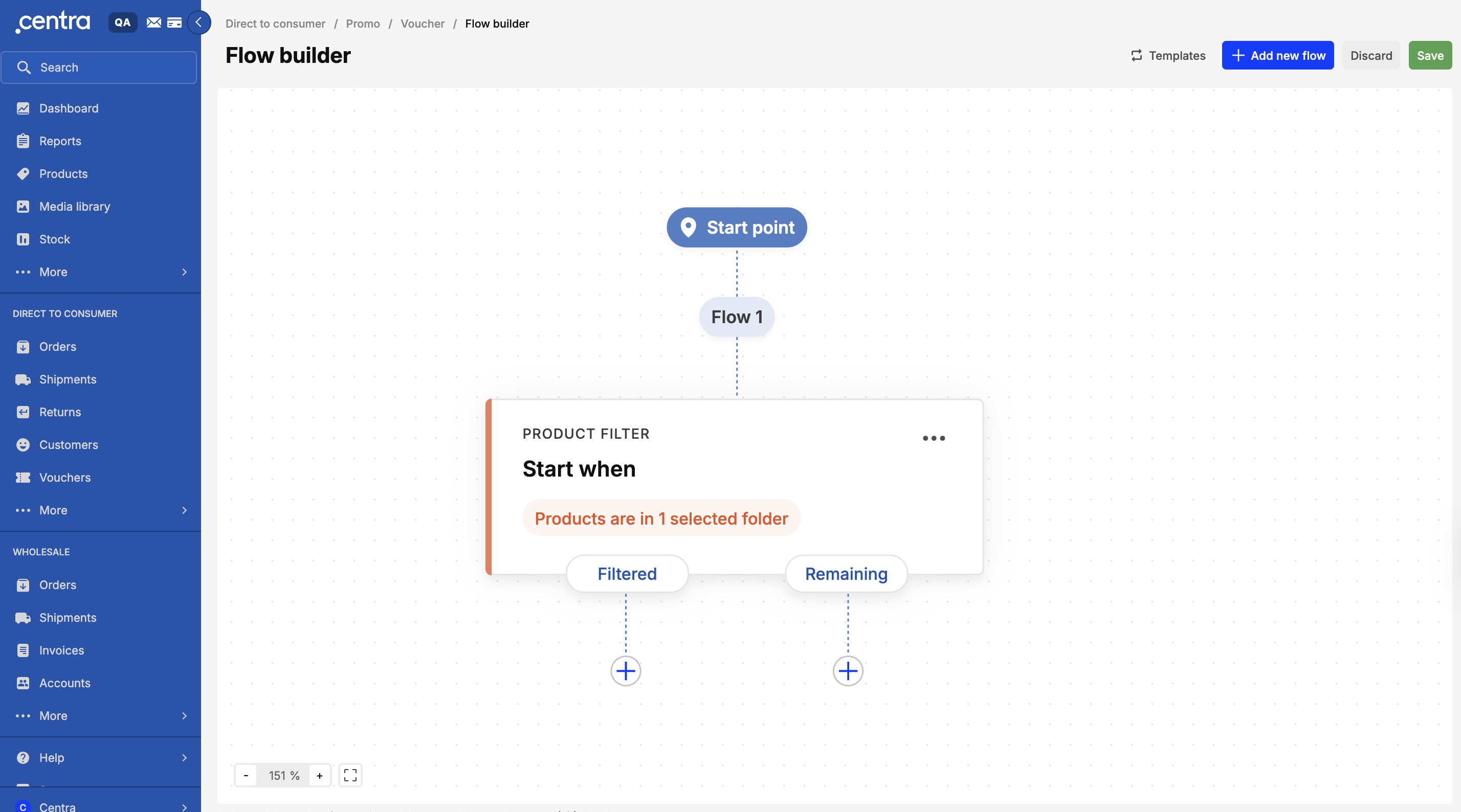
Each product filter can be applied to:
- Filtered products: Products already selected by previous filters (narrows selection further)
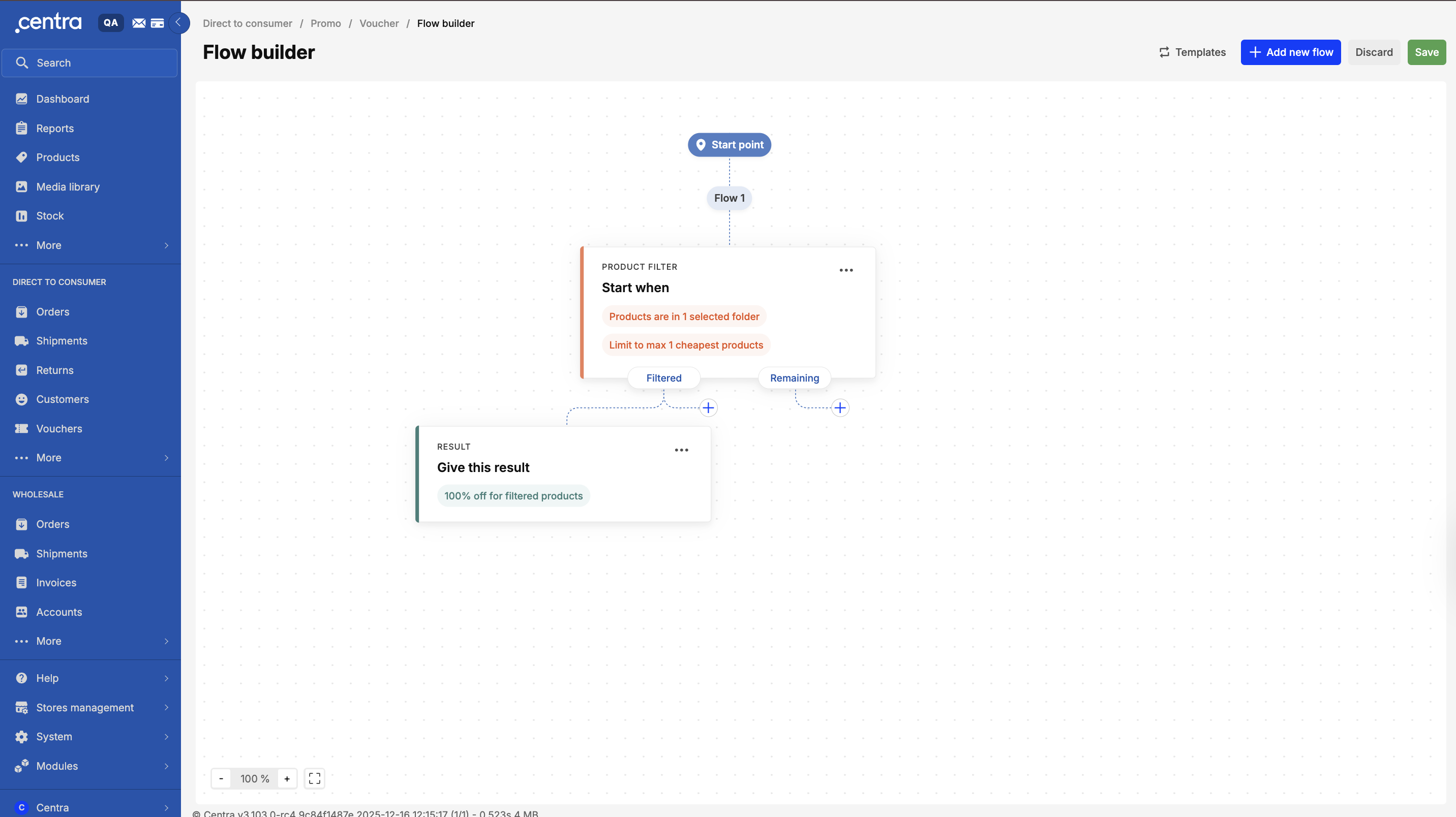
- Remaining: Products not yet selected (branches logic by creating new product sets)
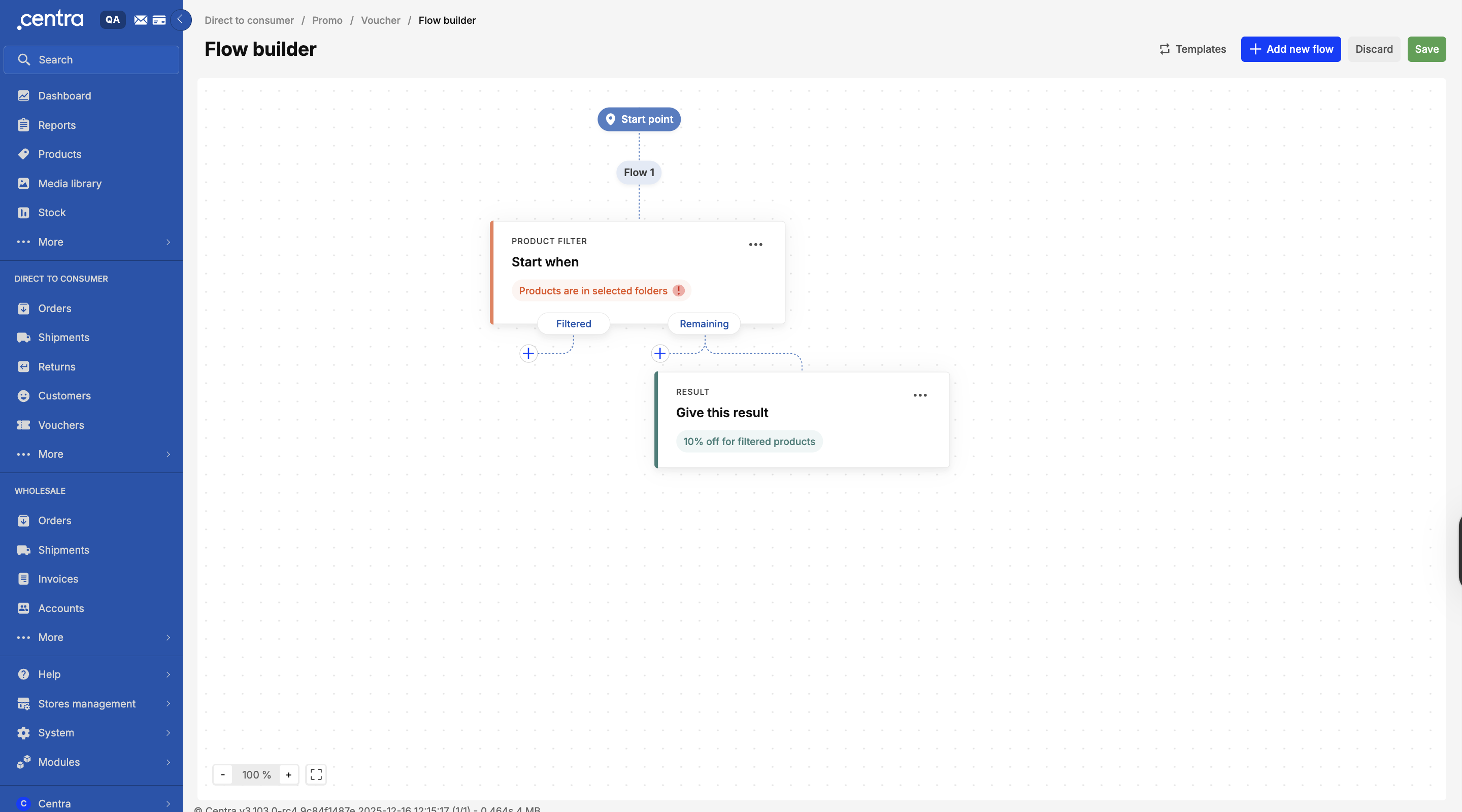
How product filter order affects voucher logic
Product filtering is sequential when using Product filters. Each Product filter evaluates only the products passed on from the previous step. Because of this, the order in which Product filters are configured directly affects which products are evaluated and when a voucher condition is met.
This behavior applies specifically to Product filters. Order conditions always evaluate the full order and are not affected by the order of filters.
Example scenario
You want to apply a discount only when a customer purchases more than X products that are not already part of another campaign.
Correct setup
First, add a Product filters card to exclude products that are part of another campaign. Then, add another Product filters card to count the remaining products and check whether the basket contains at least X items.
In this setup, only eligible (non-campaign) products are counted. The discount is applied only when the intended condition is met.
Incorrect setup
First, add a Product filters card to count all products in the basket and check whether it contains at least X items. Then, add a Product filters card to exclude products that are part of another campaign.
In this case, the system counts all products before filtering them. This may cause the discount to trigger too early, even if the customer has not added enough eligible products.
Good to know
- Always apply Product filters that define eligibility or exclusions before counting products. This ensures that only the intended products are evaluated and prevents discounts from being applied sooner than expected.
- If you want to evaluate the entire order (for example, total order value) without considering filter order, use an Order condition instead.
Order conditions
Order conditions determine whether the customer’s order qualifies for the voucher.
Supported criteria include:
| Rule Name | Previous Criteria Name | Direct to Consumer | Wholesale |
|---|---|---|---|
| Total value of all products | Order value | Yes | Yes |
| Total number of product | Order quantity | Yes | Yes |
| Shipping option | Shipping list | Yes | Yes |
Customer conditions
Customer conditions define who is eligible to use the voucher.
Supported criteria include:
| Rule Name | Previous Criteria Name | Direct to Consumer | Wholesale |
|---|---|---|---|
| Once per-customer | Yes | Yes | |
| Logged-in customers | Yes | Yes | |
| Customers created after | New Customer | Yes | Yes |
Result Cards
All flows must end with a Result card. This defines the output of the voucher.
A Result card method includes:
| Result Name | Previous Result Name | Discount option |
|---|---|---|
| Discount filtered products | Selected products | Percent off, Lower price, Fixed price |
| Discount total value of all products in order | Product total | Percent off, Lower price, Fixed price |
| Discount total value of all products in order and shipping | Order total | Percent off, Lower price, Fixed price |
| Apply free shipping | Free shipping | All shipping options, Selected shipping options |
| Give away free product | Free product | Selectable free products |
The combinable calculation includes:
| Method Name | Previous Result Name |
|---|---|
| Discounted price | Percent off, Price off, Fixed price |
| Original price - apply as best discount | Original percent off excl campaigns |
| Original price stack with other discounts | Original percent off |
Creating a Voucher using the Flow Builder
Step 1: Create a voucher
-
Go to Direct to Consumer or Wholesale > Vouchers
-
Click Create voucher
-
Enter the required voucher details:
- Name
- Start date, Stop date
- Priority
- Max usage
-
Select Apply discount on
- Order Item (default for discount vouchers)
- Order (for credit vouchers)
Read here on the difference between Discount and Credit voucher
-
Click Enter flow builder to launch the visual interface.
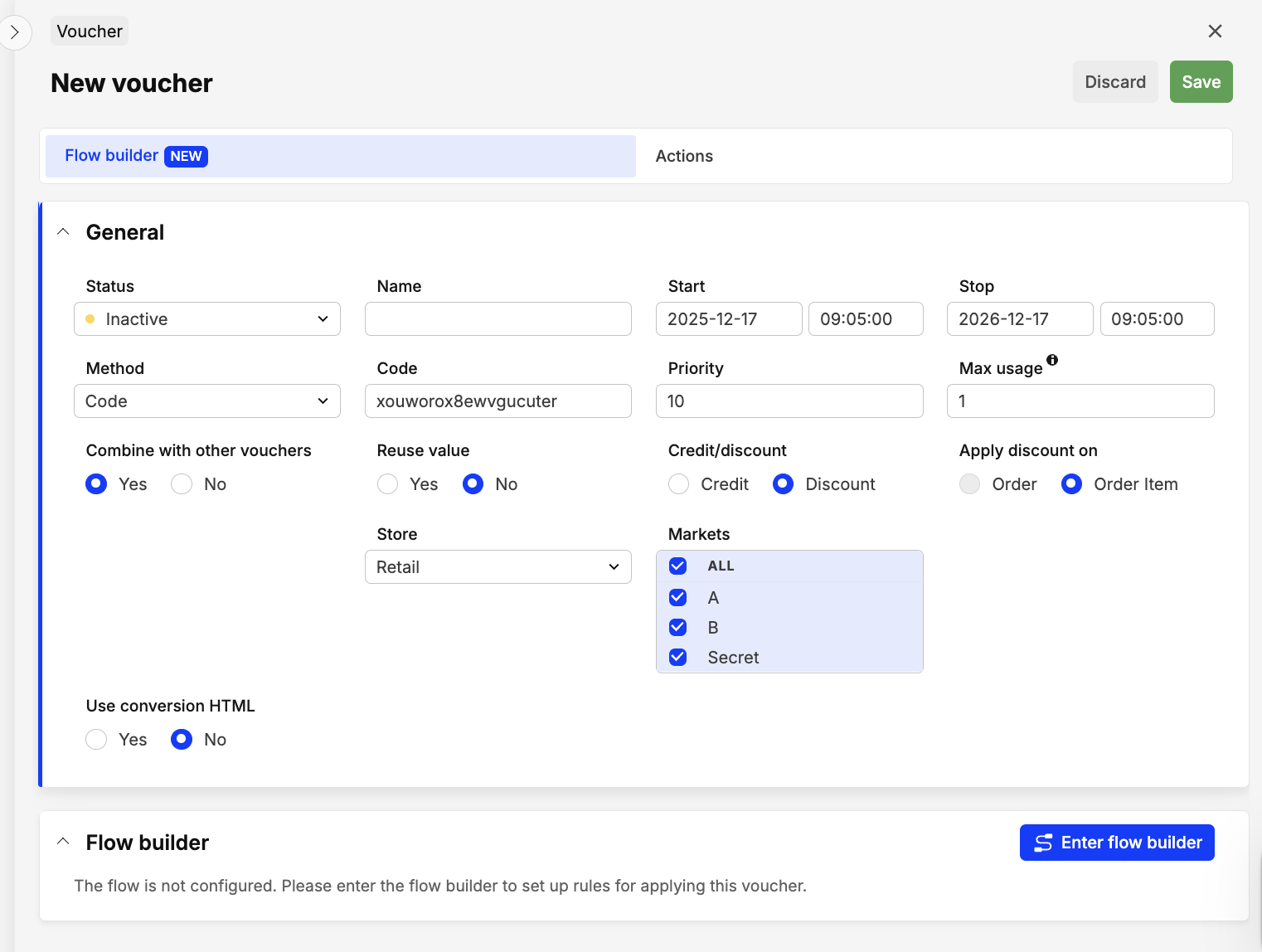
The voucher is created the moment you enter the Flow Builder. If you are working with Auto vouchers, set the voucher status to Inactive as a precaution.
Build the voucher flow
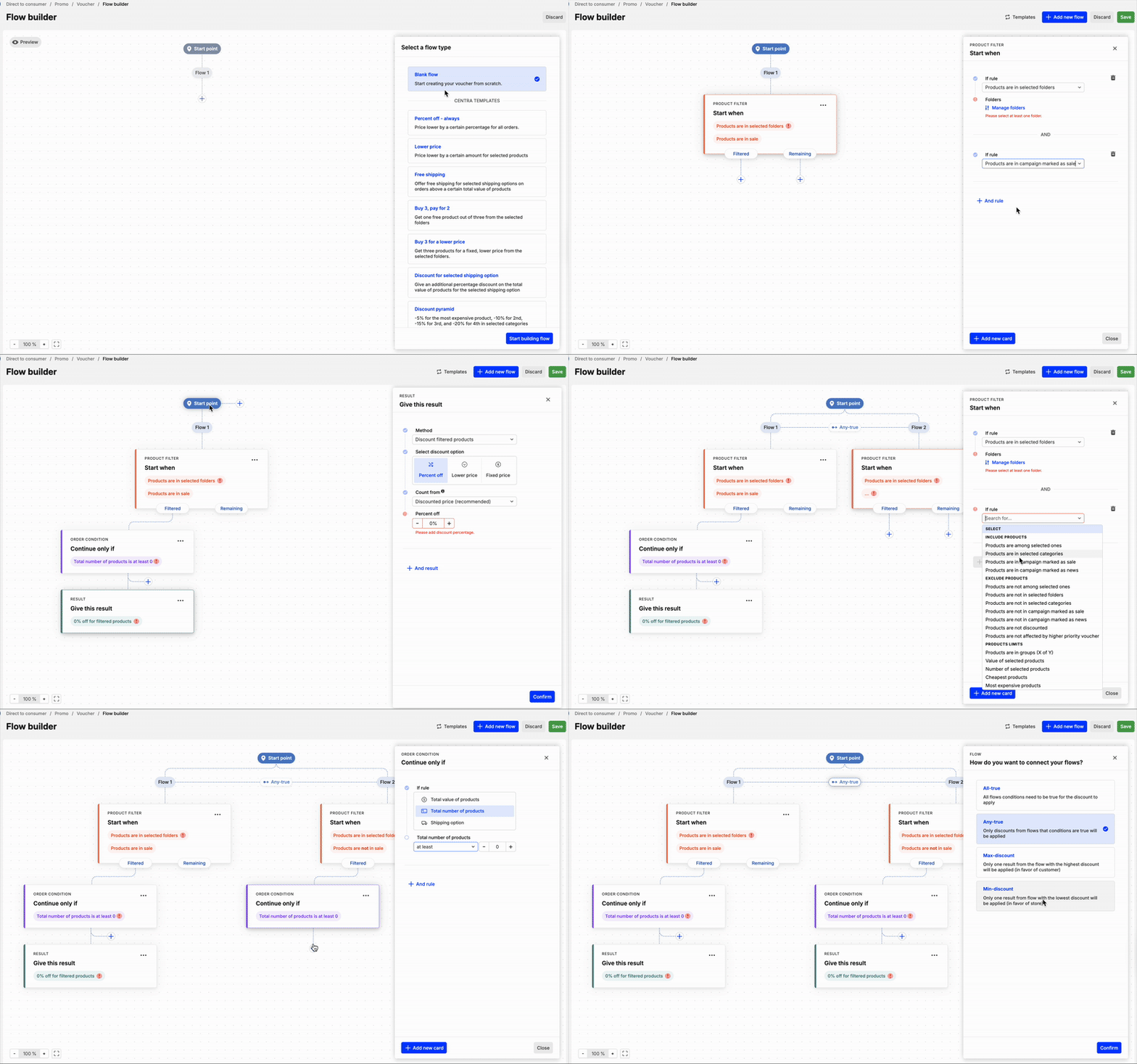
The Flow Builder canvas will open. You can start with a blank configuration or use a predefined template.
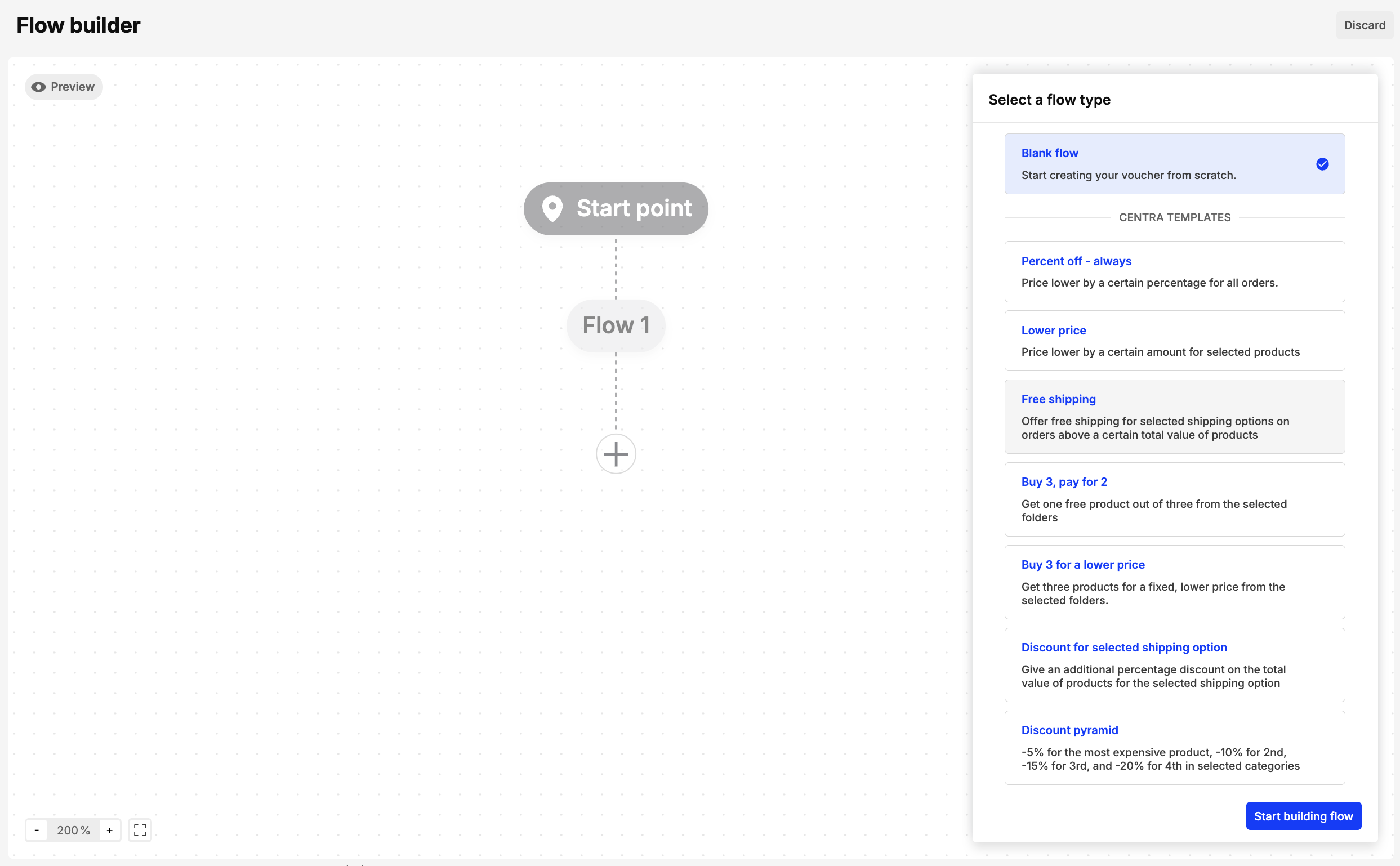
Option A: Centra Templates
Templates provide preconfigured flows for common voucher types.
- Select a template
- Click Start building flow to apply the template
- Adjust the product selections, criteria, or discount
- Modify or delete cards as needed
- Templates are fully editable.
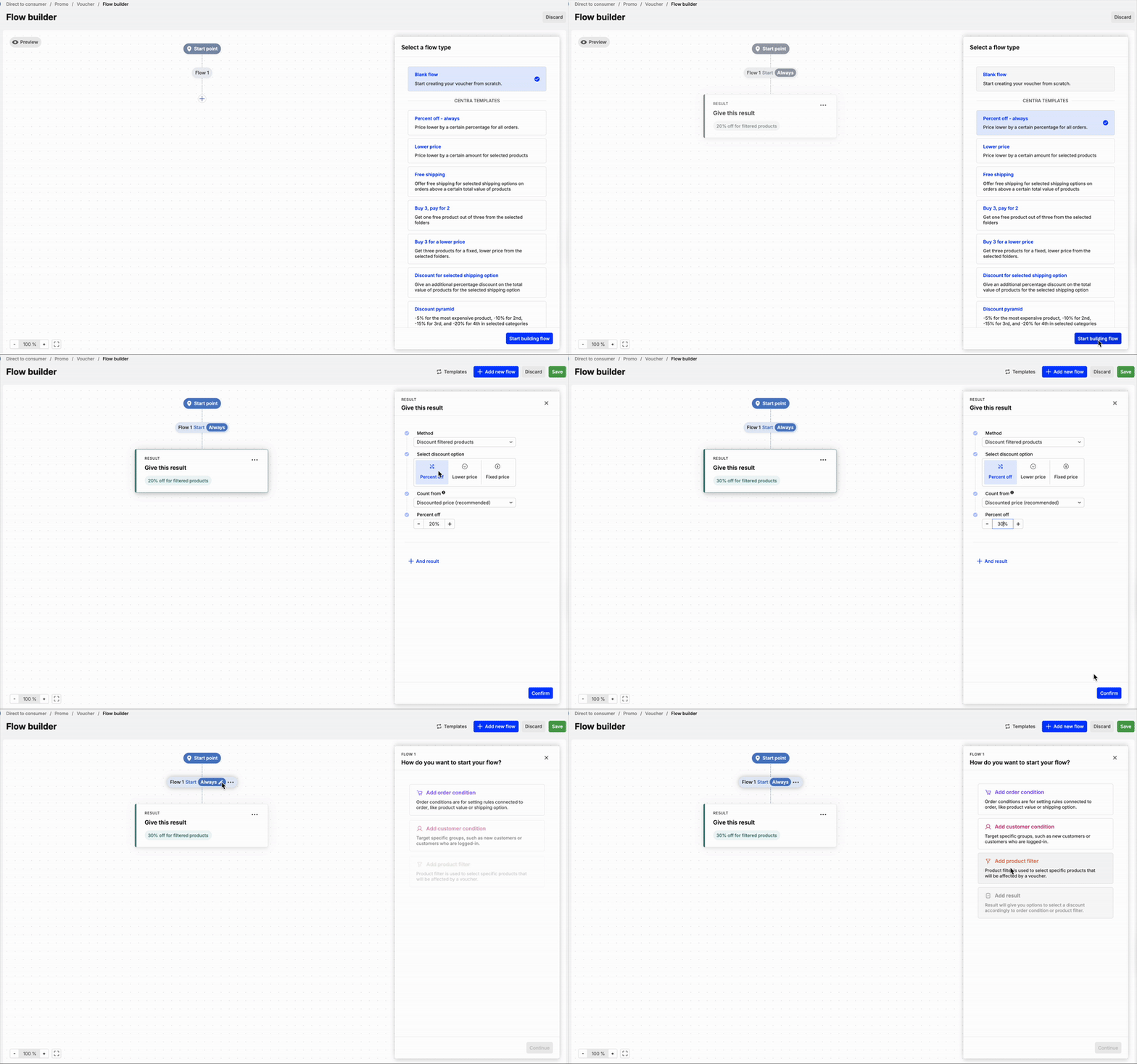
Available Centra Templates:
- Percent off - always:
Applies a percentage discount to all products. You only need to enter the percentage and activate the voucher.
Use case:
Ideal for newsletter promotions where a single code or URL applies a discount across the full assortment.
- Lower price:
Applies a fixed price reduction (e.g., €5 off) to selected products or the entire order. You need to set the deduction amount and activate the voucher.
Use case:
Useful for simple price-off campaigns promoted through newsletters or landing pages.
- Free shipping:
Removes the shipping cost from any order where the voucher is applied.
Use case:
Common for promotions offering free delivery, especially above some specified minimum order total or using a promo code.
Use CRM filters to target customers with strong purchase or low return behavior.
- Buy 3 pay for 2:
When a buyer adds three eligible products from the selected folders, one product is sent to the Result card and discounted by the percentage you define. You can set this discount to 100% (free) or adjust it.
Use case:
Effective for increasing basket size and average order value (AOV).
- Buy 3 for a lower price:
Lets you set a fixed price for a group of products (e.g., 3 for €35). You can modify the quantity (e.g., from 3 to 5), but all quantity fields in the preset must be updated accordingly. Then define the fixed bundle price per pricelist.
Use case:
Often used for socks, underwear, or accessories as multi-buy deals.
- Discount for selected shipping option:
Applies a discount on shipping only when the customer selects a specific shipping option.
Use case:
Useful when promoting certain delivery methods.
Combine with CRM filters to target specific customer groups.
- Discount Pyramid:
Applies increasing discounts based on the number of items purchased (e.g., 5% for 1 item, 10% for 2, 15% for 3, etc.). Discount is applied on the most expensive products in the selection. The template handles the tier logic automatically.
Use case:
This template rewards larger baskets by applying higher discounts as the number of products increases, making it effective for upselling and volume-based incentives.
- More products in the order, higher discount:
This template increases the discount based on the total number of products in the order (e.g 10% for 3 products, 15% for 4 products, 20% for 5 or more products). Discount is applied on all products.
This template uses the Max-discount flow. Centra applies the flow that provides the highest discount for the customer.
Use case:
Use this template to encourage customers to add more items to their order by clearly rewarding higher quantities.
- More products from folders, higher discount:
This template applies tiered discounts based on the number of products added from selected folders (e.g. 10% for 1–3 products, 15% discount for 4–6 products, 20% discount for 7–9 products).
This template uses the Max-discount flow. Centra applies the flow that provides the highest discount for the customer.
Use case:
This template is effective for promoting specific categories or collections while incentivizing customers to increase quantity within the same product group.
Read this article for a deeper explanation of how vouchers work.
Option B: Blank Flow
Blank Flow allows you to build a voucher from scratch by adding cards step by step. This gives you full control over how products, orders, and customers move through the logic.
- Select Blank flow
- Click the + icon to add your first card
- Choose from the available card types:
- Product filters
- Order conditions
- Customer conditions
- Result
- Configure the flow in each card:
- To narrow down eligible products, add a Product filters card.
- To refine the same product group, add another Product filter using Filtered products.
- To create an alternative branch, use Remaining.
- To apply requirements based on order or customer attributes, add Order conditions or Customer conditions.
- To finalize the logic, end each flow path with a Result card.
- If you build multiple independent flows, click + in the main canvas area
- Configure each flow separately.
- Choose a connection type to define how the flows relate:
- All-true
- Any-true
- Max-discount
- Min-discount
- Click Save to store your changes.
Good to know
- If no products pass a Product filter, the flow ends and no discount is applied for that path.
- Each flow must end with exactly one Result card.
- Flows can overlap and connection types determine whether all, some, or only the best discount applies.