AI Content Studio - Generation
About this article
AI Content Studio lets you generate, review and publish on-brand product copy without leaving Centra AMS. It replaces the usual loop of exporting spreadsheets, running copy through external tools and pasting it back in, product by product.
It is built for the people who own product content:
- Catalog managers filling gaps across hundreds or thousands of products
- Merchandisers preparing new collections for launch
- Copywriters who want a strong first draft to edit rather than a blank page
Everything the AI writes is a draft. Nothing reaches your live catalog until someone reviews it and clicks publish.
This guide focuses on generating content. Translation is available too and is only mentioned where it connects to generation.
Key Capabilities
| Capability | What it does for you |
|---|---|
| Product copywriting | Writes descriptions, short summaries, SEO meta titles and descriptions, URL slugs, bullet points and media alt text in seconds. |
| Image analysis | Reads your product images before writing, picking up colors, silhouettes, garment details, materials and styled props, and works them into the copy. |
| Translation | Translates generated content into other languages straight from the batch it was created in. |
| Brand voice controls | Applies your guidelines and style references so every batch sounds like your brand. |
| Review and approval | Shows each AI draft next to the currently published text, so you can compare, edit and approve before anything goes live. |
Guidelines and style references
Guidelines tell the AI how to write, and style references show it. Set them up once in the Guidelines tab and every batch uses them automatically.
Guideline types
Written guidelines stack from broad to specific, each adding rules on top of the one before. Style references add worked examples on top of all of them.
| Type | Applies to | Use it for | Example |
|---|---|---|---|
| Global | All AI-generated content | Company-wide tone and formatting standards | "Never use exclamation marks." |
| Brand | One brand or sub-brand | That brand's voice and personality | "Our outlet brand is relaxed and value-focused." |
| Language | One market or language, during translation | Local nuances and conventions | "Use formal 'Sie' in German." |
| Batch | A single generation run | Quick, one-off direction for a collection | "Make this batch punchy and focused on summer beachwear." |
| Style References | Up to 5 example products | Showing the AI what good copy looks like, beyond written rules | Your best outerwear product page as the model for new coats |
Style references
Style references are up to 5 products whose existing copy you consider your gold standard. The AI uses them as concrete examples of what good output looks like, alongside your written guidelines.
They help the AI match:
- Voice: tone, phrasing and formatting from your existing descriptions and campaigns
- Structure: whether copy should be short and editorial, technical and detailed, bullet-based, SEO-led or storytelling-led
- Category style: different examples for footwear, outerwear, accessories or lifestyle products
Style references stay saved between batches, so you don't need to pick them again every time. You can change them whenever you like. To set them, open the Guidelines tab, select Style references and click Manage products. You can also set them straight from the generator with the Set style references button in the Scope step.
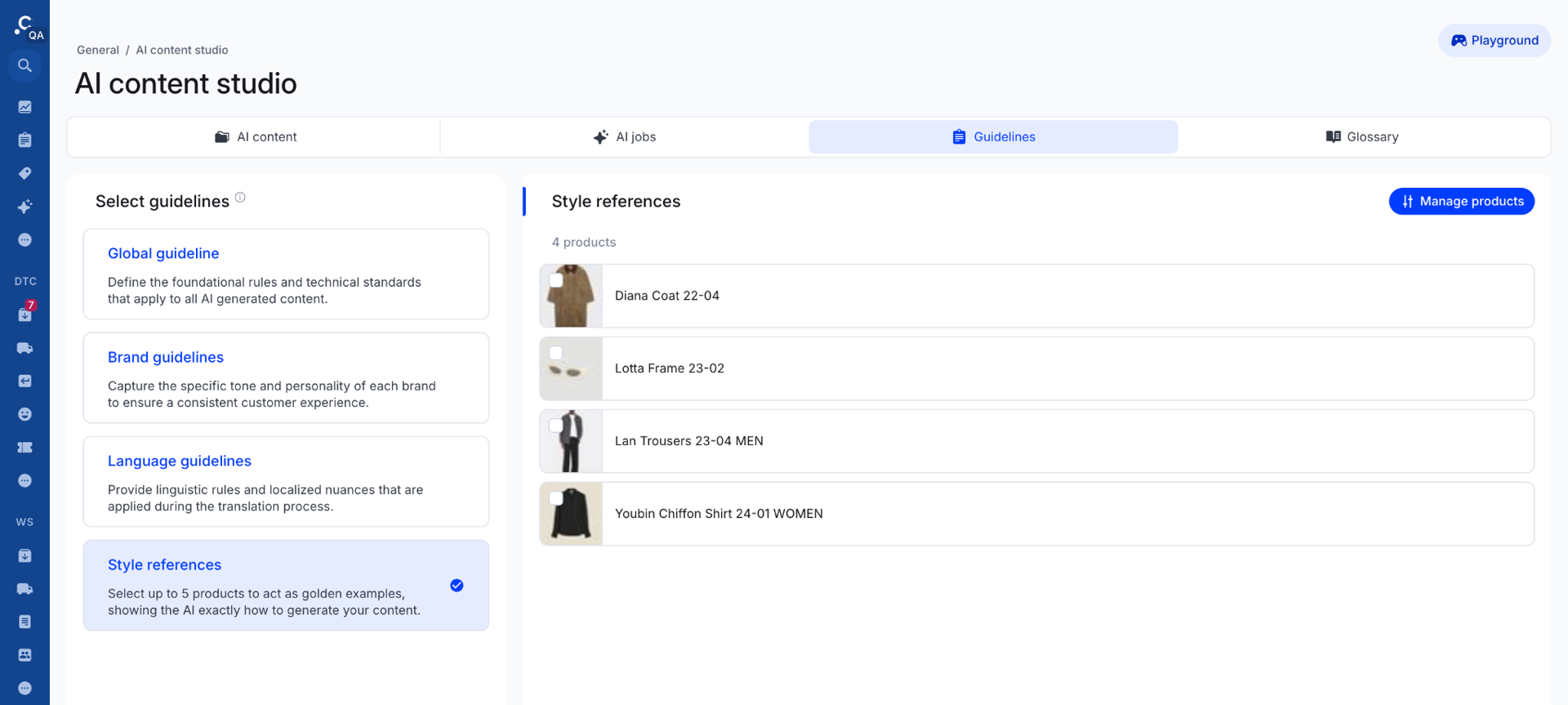
References shape tone and structure only. The facts in the final copy still come from the product you are generating for, never from the reference products.
Centra takes the example copy from the store you are generating for. For example, if you select the Retail store in the generator, Centra passes the Retail store and display fields of your style reference products to the AI as the example.
The AI also leans on the reference closest in category to the product it is writing for. For example, if you generate copy for glasses and one of your references is a bag, both belong to Accessories, so the AI follows the bag's copy more closely than your other references. Pick references that cover your main product categories to get the best match.
Accessing AI Content Studio
Open the main navigation in Centra AMS, go to General, and select AI Content Studio under Content.
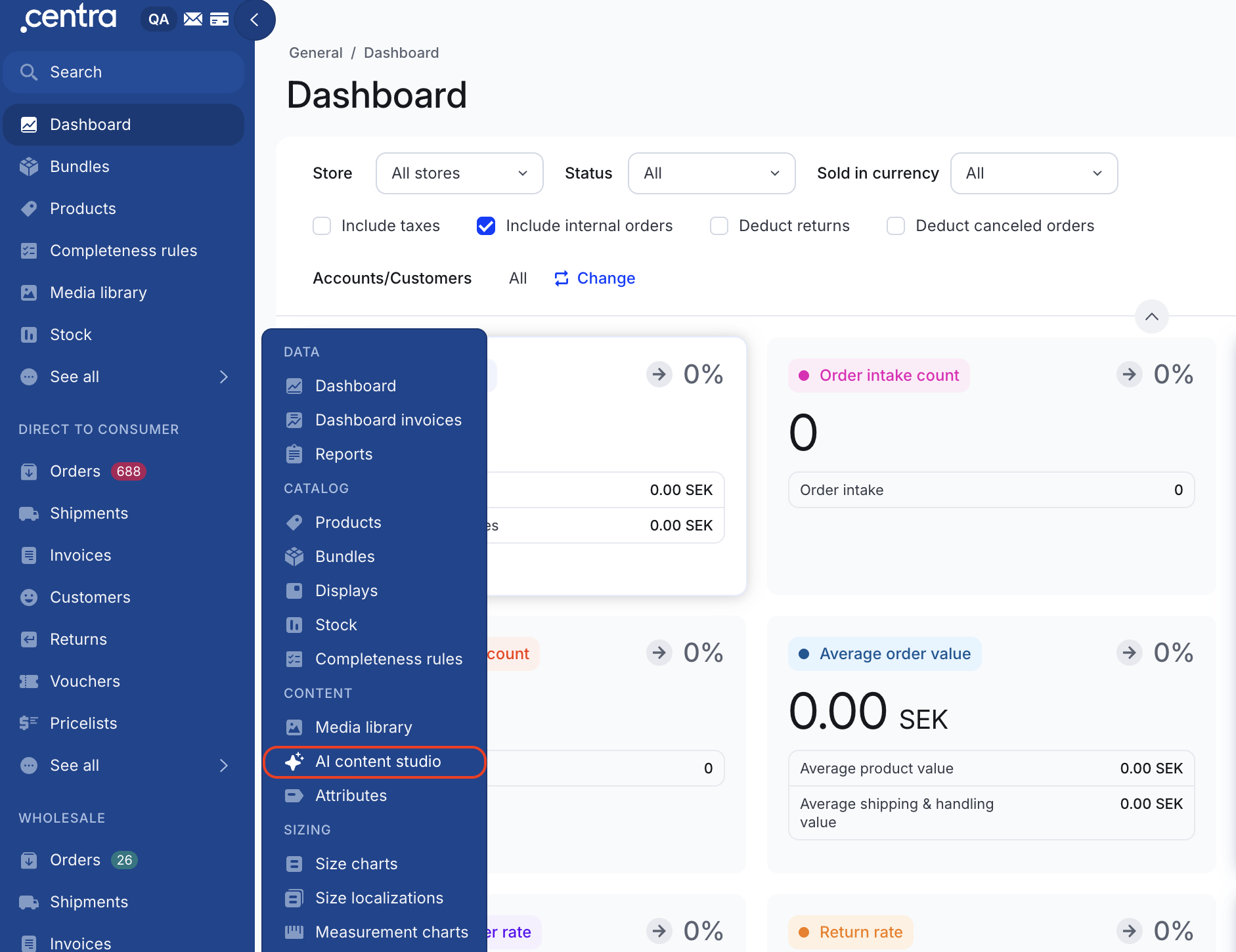
The studio has four tabs:
| Tab | What you do there |
|---|---|
| AI content | Track all your batches by status: Pending, Processing, Draft, Published, Archived and Failed |
| AI jobs | Start a new generation batch. Translation jobs are listed here too. |
| Guidelines | Manage global, brand and language guidelines and style references |
| Glossary | Manage terms the AI should treat consistently |
Who has access: the dedicated AI Content Studio permission controls access. It is on by default for full-access administrators and for users with access to Catalog. If you can't see the menu item, ask your Centra administrator to grant the permission.
Creating a generation batch
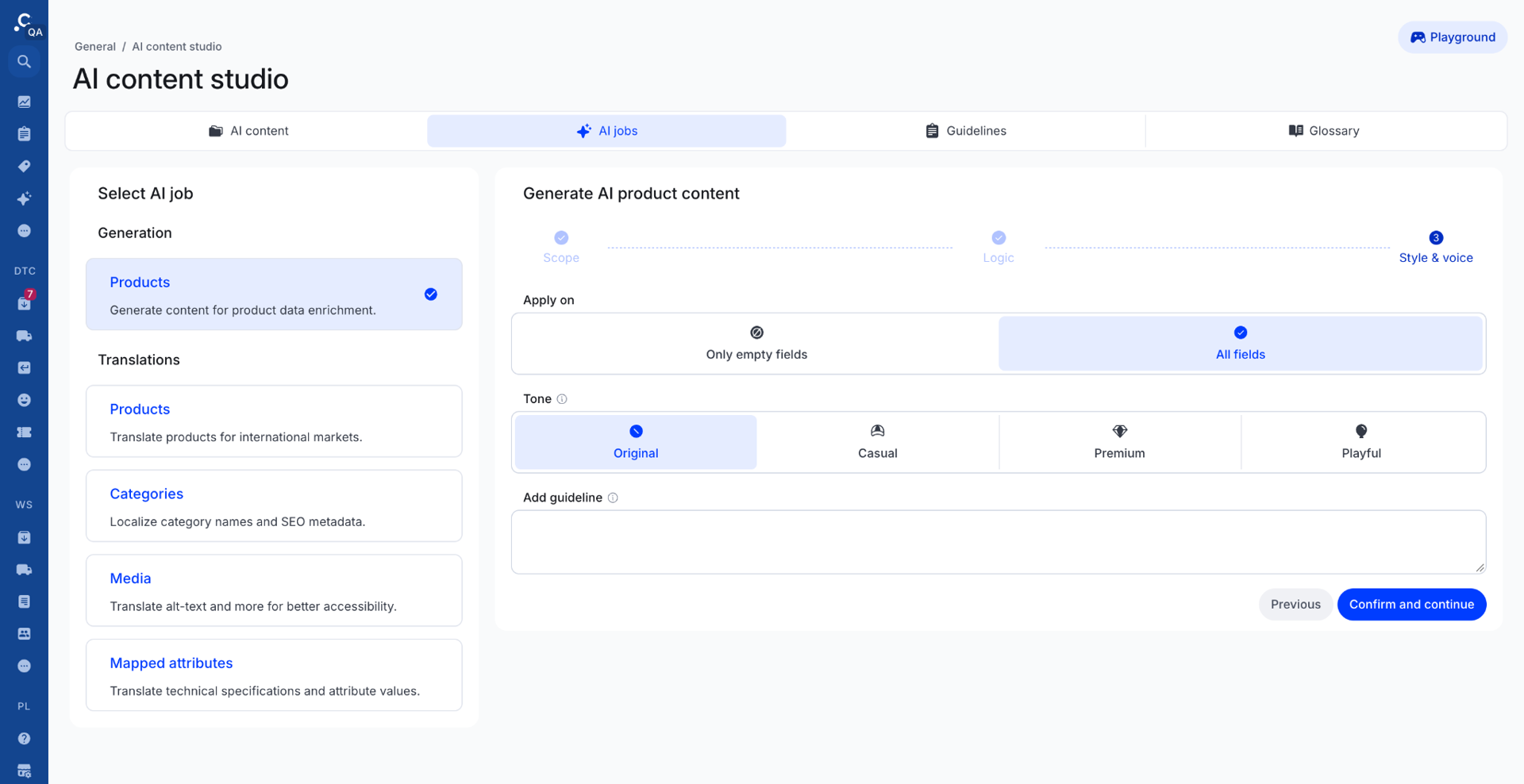
A batch is one generation job for a set of products. Go to AI jobs and choose Products under Generation. Then work through the three wizard steps: Scope, Logic, and Style & voice.
The same page also lists translation jobs under Translations. This guide covers generation.
Step 1: Scope
- Batch name: give the job a name you'll recognize later, such as AW26 Outerwear Descriptions.
- Store: choose the store the content is for.
- Products: click Manage products to pick products, variants or displays. Archived and canceled items are skipped automatically.
- Internal comment (optional): leave a note for your team, such as New collection, copywriter review required.
- Style references (optional): click Set style references to choose your example products. Your references stay saved for future batches, and you can change them at any time. We highly recommend setting references to get the best results.
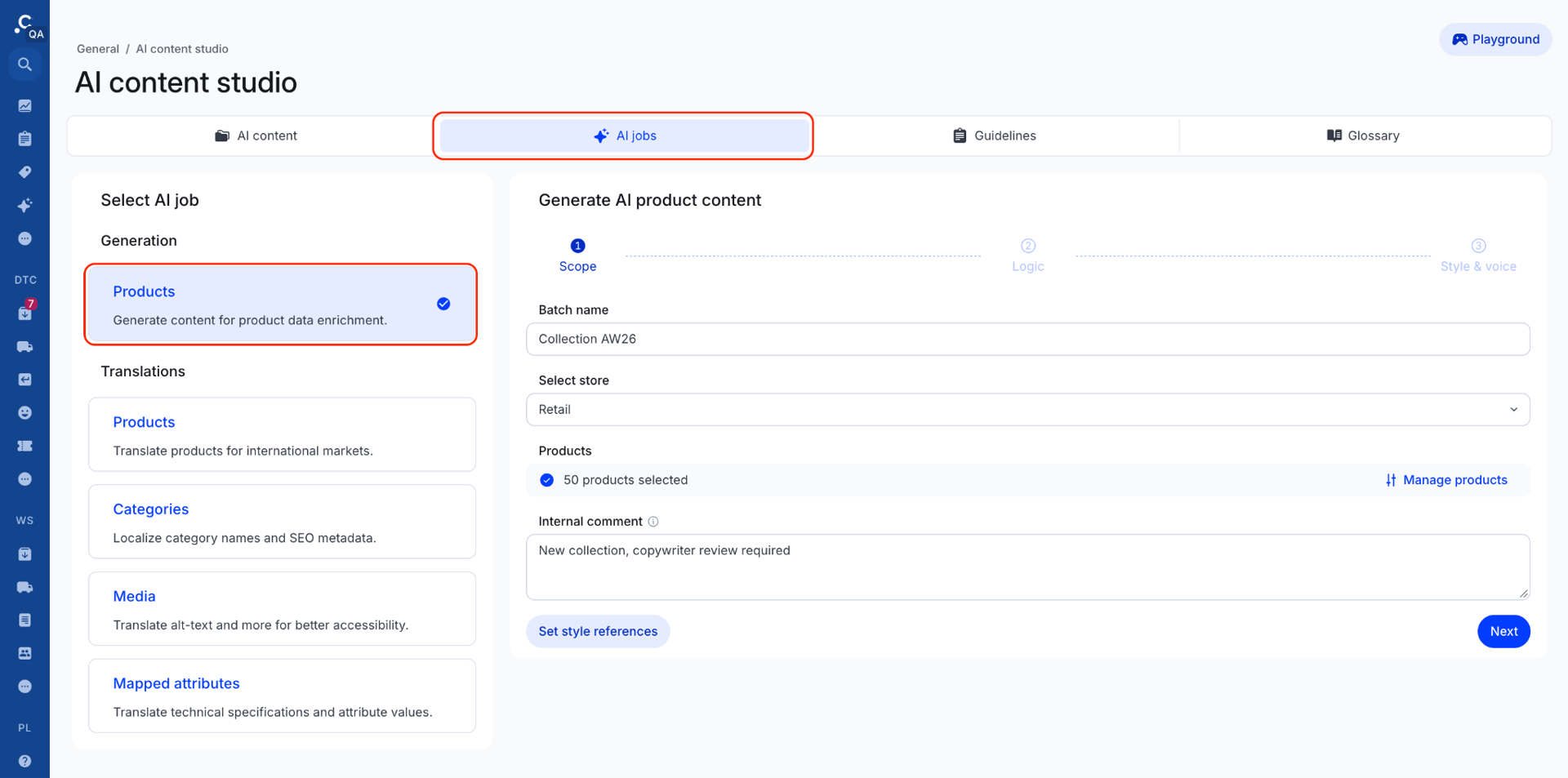
Step 2: Logic
Choose what the AI reads and what it writes.
- Source attributes are the facts the AI uses as product context, such as name, composition, material or factory. They can come from product, variant, store or display level.
- Attributes to generate content for are the fields the AI writes, such as short description, description, meta title, meta description, meta keywords, tags, display name and URI. These can only be store- or display-level fields.
You can pick the same field as both source and target, for example to rewrite an existing description.
Two toggles sit below the lists:
- Add more context before generation: opens a table where you can add notes per product before the run starts (see the next section).
- Remember these attribute settings: keeps your field choices for your next batch.
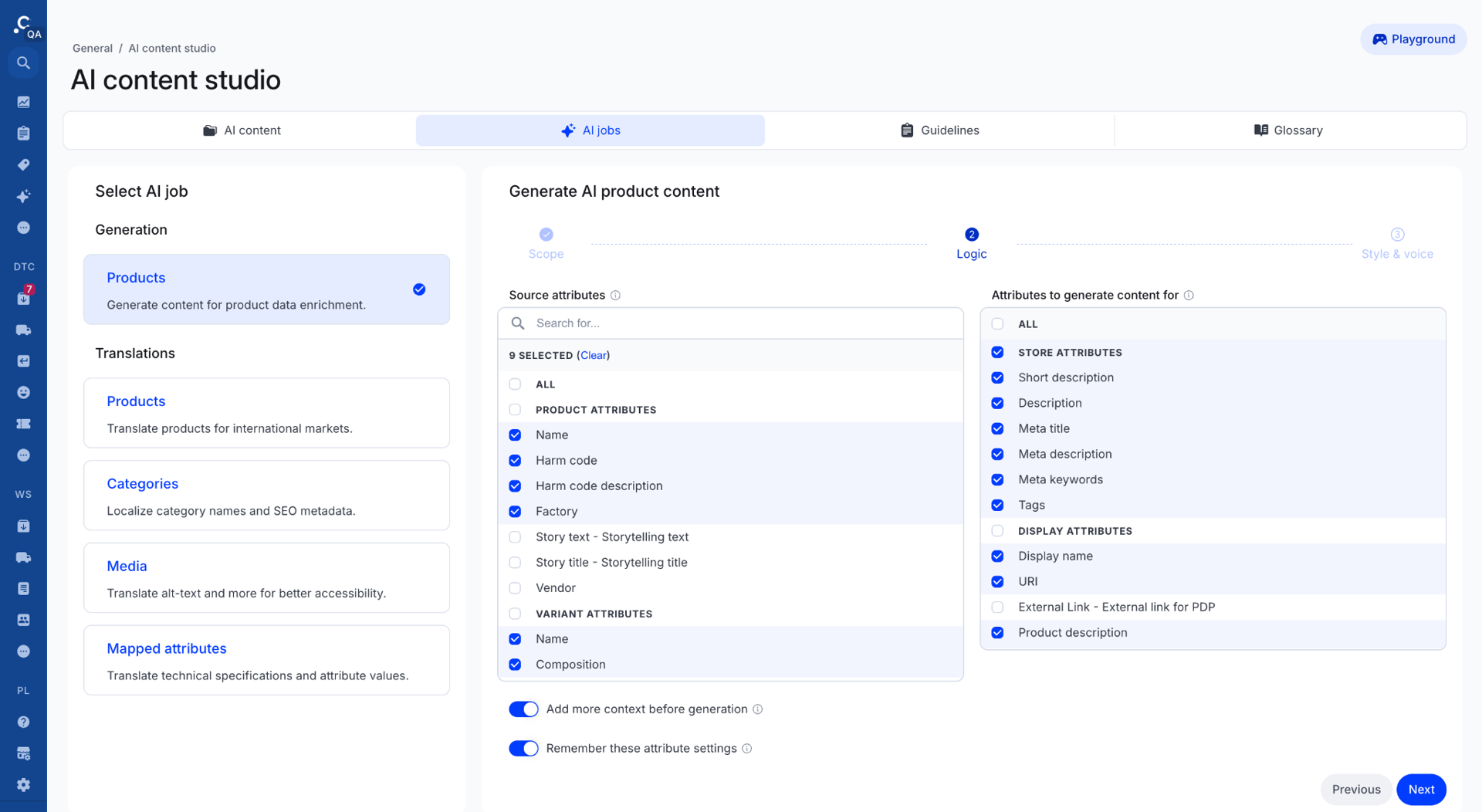
Product images are always sent to the AI. Centra picks them in this order and uses the first set it finds:
- Media activated on the display
- Media connected to the variant
- Media uploaded to the product
Step 3: Style & voice
Apply on controls which fields get new content:
| Option | What happens |
|---|---|
| Only empty fields | The AI writes only target fields that have no value in Centra yet. |
| All fields | The AI writes every selected target field, even ones that already have published content. |
Choosing All fields is safe. Centra never overwrites published content automatically. New drafts wait for you to review and publish them.
Tone sets the overall feel: Original, Casual, Premium or Playful.
Add guideline is where you type a batch guideline that applies to this run only.
Click Confirm and continue to create the batch.
If stores or displays are missing
Content can only be generated for a store and display that exist. If some selected products lack them, a Missing store and displays dialog tells you how many are affected. You can:
- Create store and displays: Centra creates them for you with fixed settings: one display per variant, status Preview, each display named after its variant, and the variant activated on the display.
- Skip this step: generate without those store and display attributes.
- Download CSV: get the list of affected items.
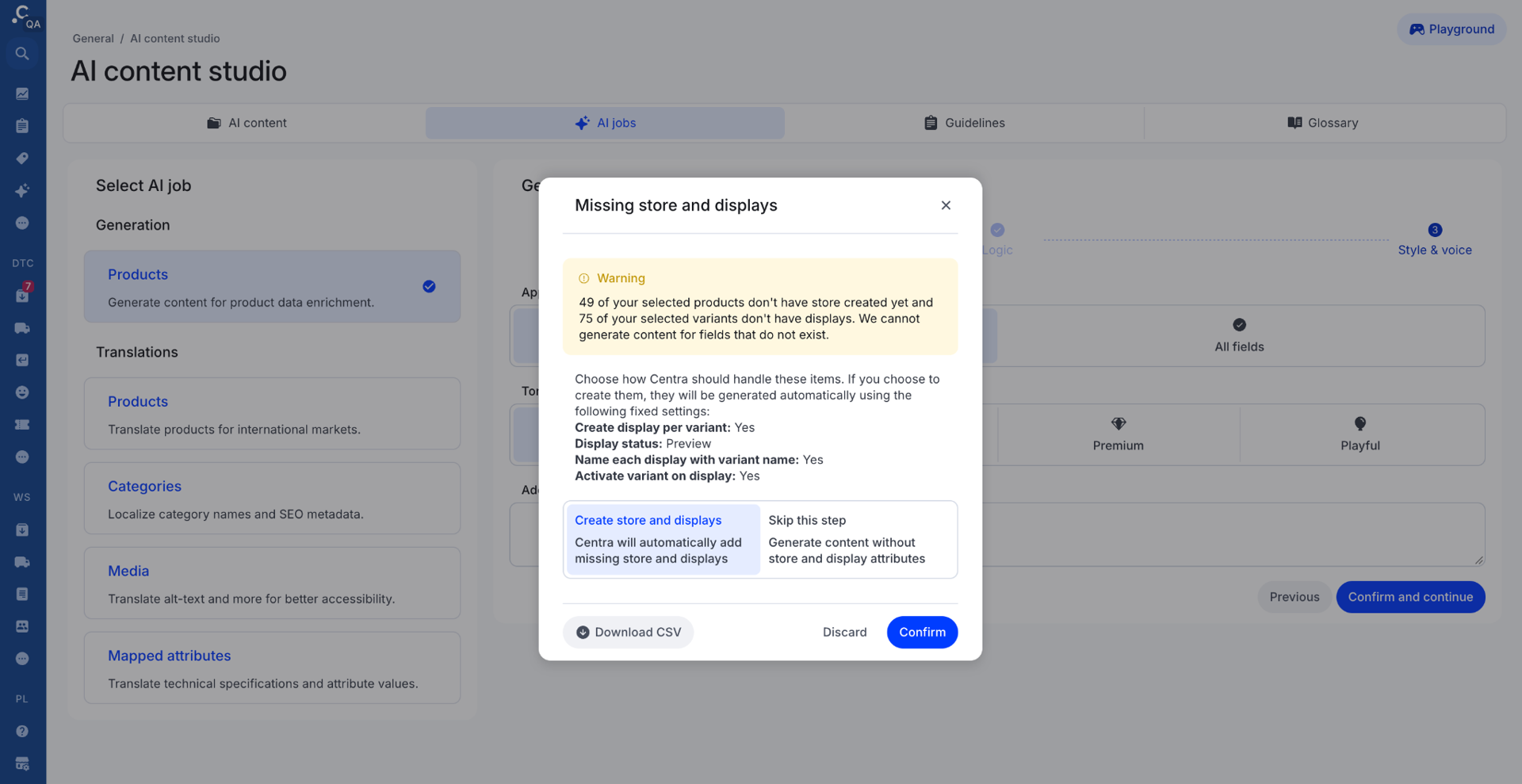
Displays created this way don't go live. Their status is Preview, and Centra also needs a price and market set before a product is exposed through the APIs.
Adding product context (optional)
Product context lets you tell the AI things your attributes don't, one product or variant at a time. It's useful for design inspiration, fit notes or campaign angles, such as Inspired by 90s heritage workwear, oversized fit.
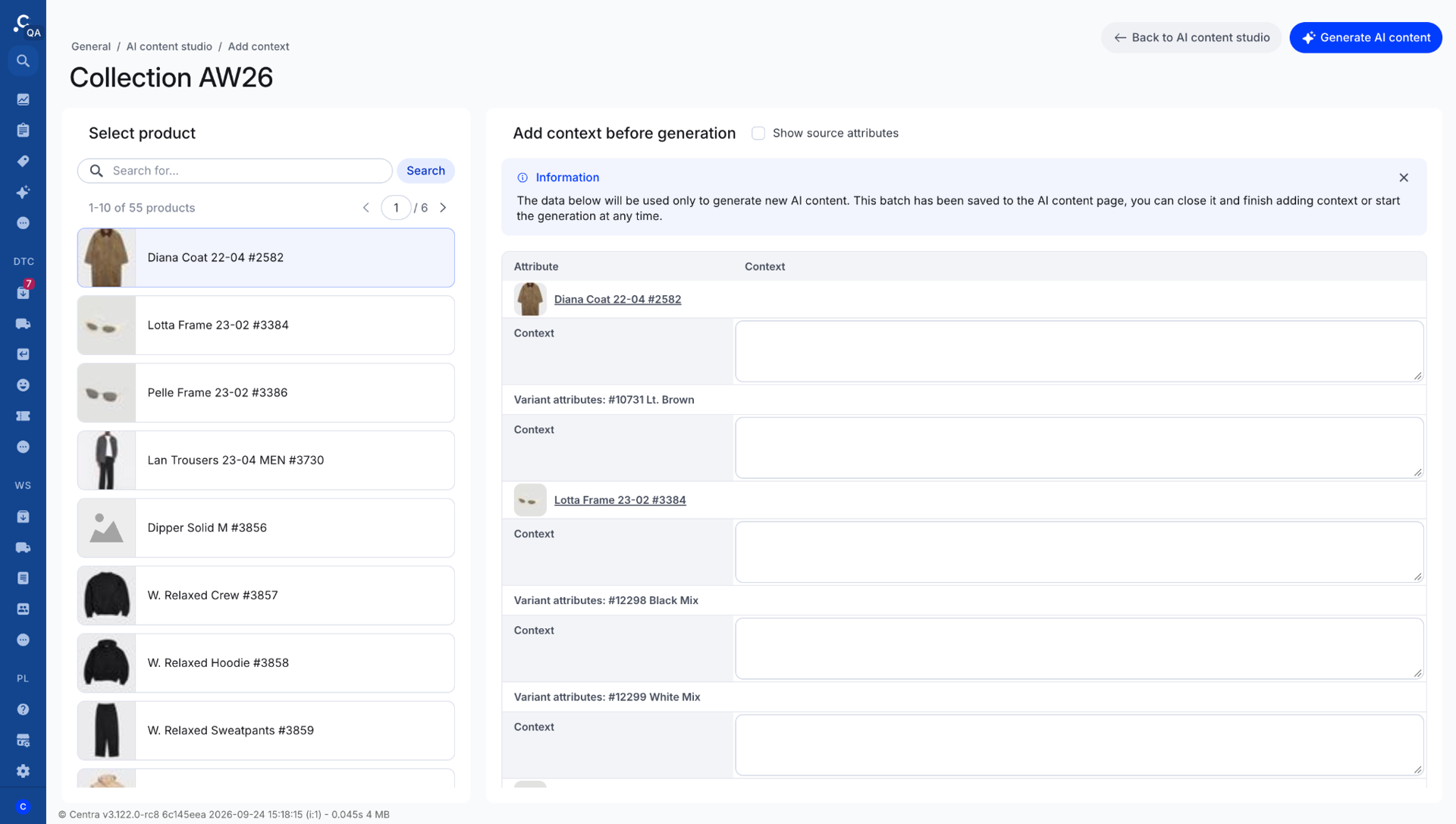
If you turned on Add more context before generation, the batch opens in the context table after you confirm it:
- Pick a product from the list on the left, or search for it.
- Type notes in the Context box for the product, and for any of its variants.
- Tick Show source attributes to show each product's source fields underneath its editable context fields, so you can see what the AI already knows before adding notes.
- Click Generate AI content when you're ready.
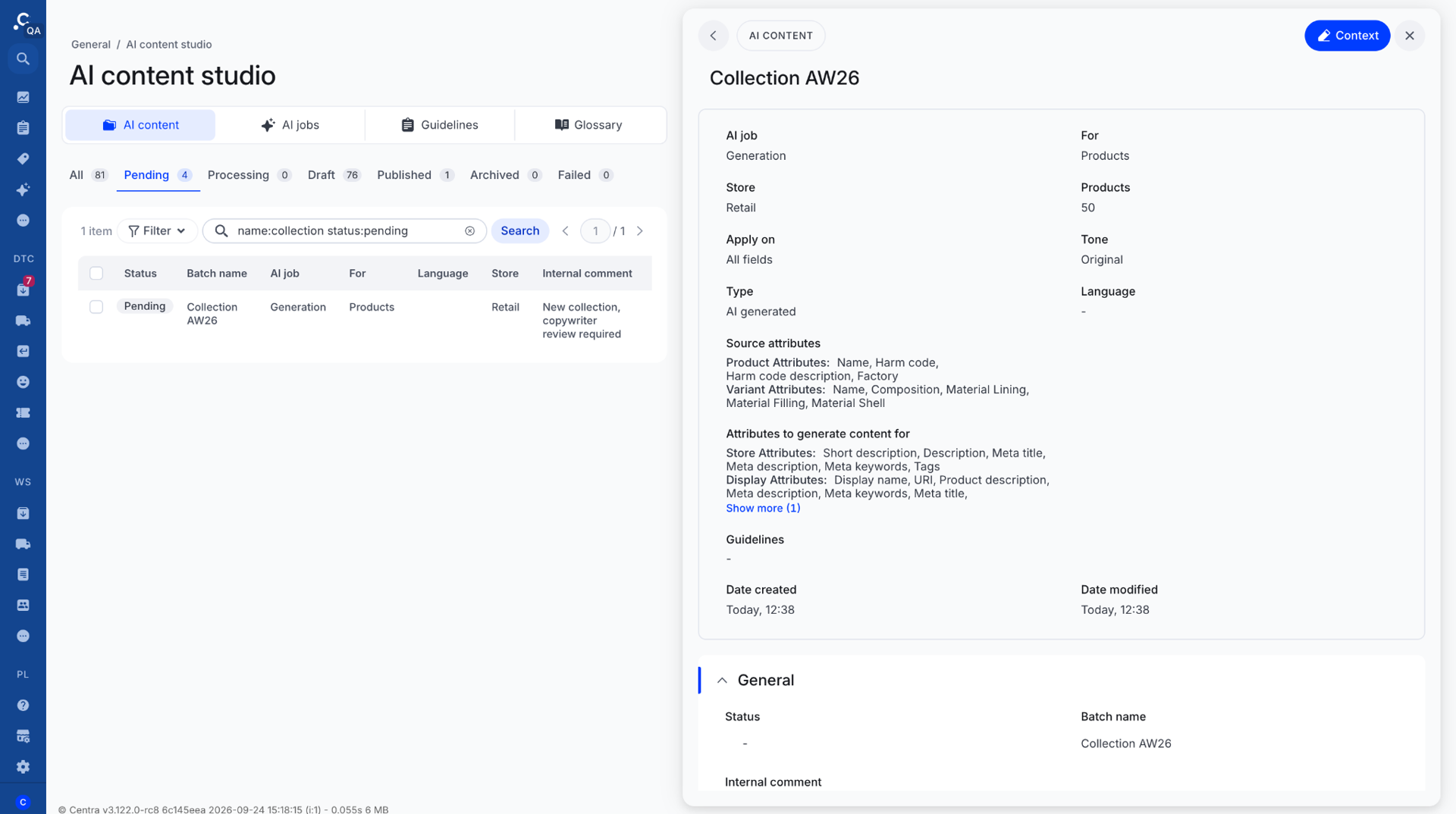
The batch already exists at this point, but generation only starts when you click Generate AI content. Your notes save automatically, so you can leave and come back later. This helps when you're adding context for tens or hundreds of products. You'll find the batch under AI content with the status Pending. Open it and click Context to continue.
Reviewing, editing and regenerating
When a batch finishes, its status changes to Draft. Open it from AI content to reach the review table.
The review table lists the batch's products on the left. For the selected product, each attribute shows the AI-generated draft next to the published text, grouped into store attributes and display attributes. Click Source text to open a pop-up with the read-only source attributes the AI worked from for that product.
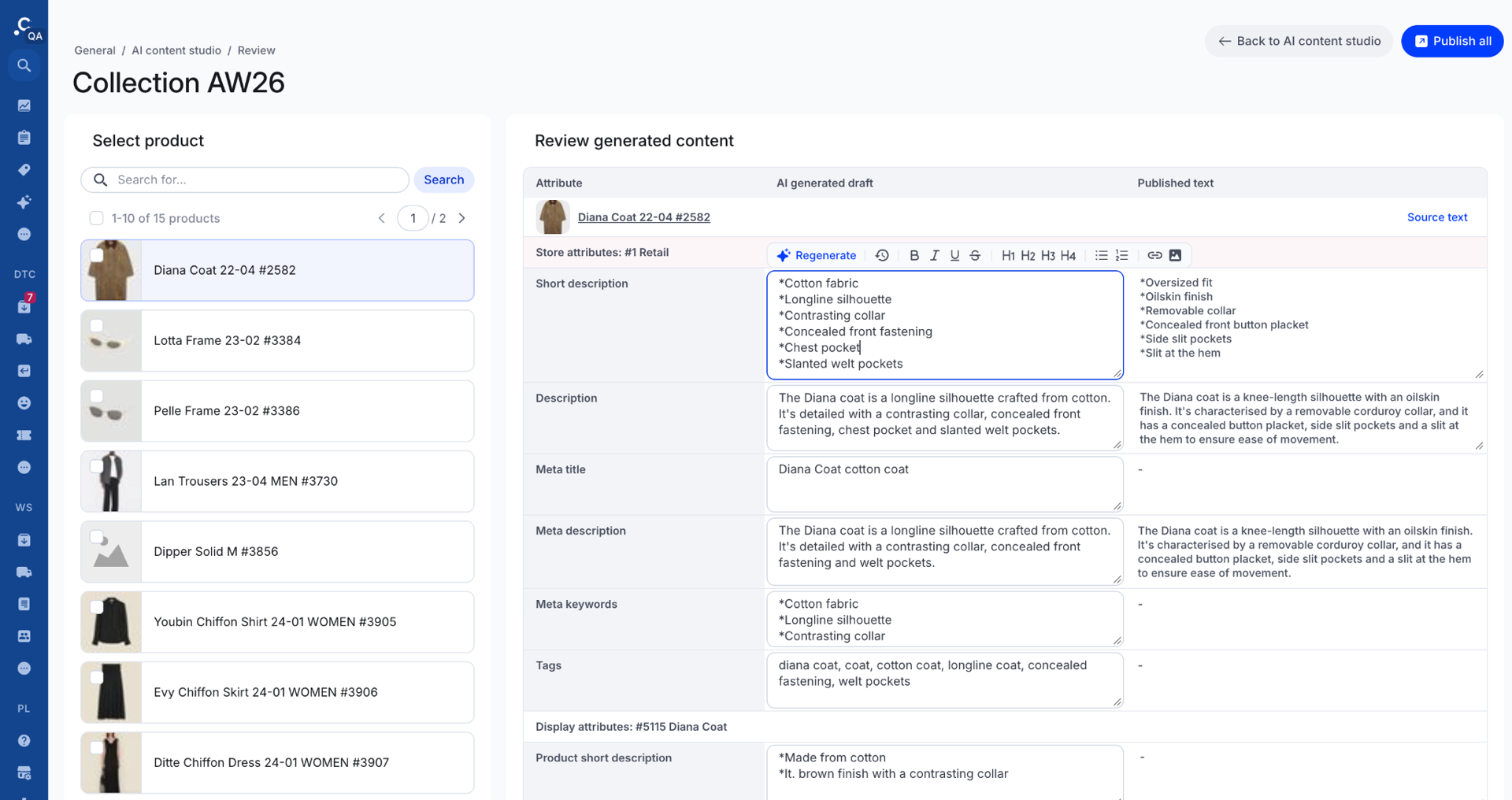
- Compare each draft against what's live today.
- Edit in line: click into any draft field and change the text. The toolbar offers bold, italic, underline, strikethrough, headings, lists and links.
- Regenerate a single field if it needs a different angle. You can add updated context first. The rest of the product's drafts stay as they are.
- Restore a previous version if you prefer what was there before. Click the clock icon next to Regenerate to bring back an earlier version of the field, for example after a regeneration or edit you don't want to keep.
Publishing to the catalog
Publishing writes your approved copy to the product and store records in Centra, replacing the published text for those fields.
- Publish selected: publishes only the products you've ticked in the review table.
- Publish all: publishes every product in the batch.
Once published, the batch moves to the Published status under AI content.
Publish only what you've reviewed. For large batches, work through the list and use Publish selected in rounds rather than publishing everything at once
Translating a generated batch
Once a batch is generated, you can translate it into other languages straight from the batch.
- In the AI content tab, open the generated batch.
- Click Translate in the top right corner.
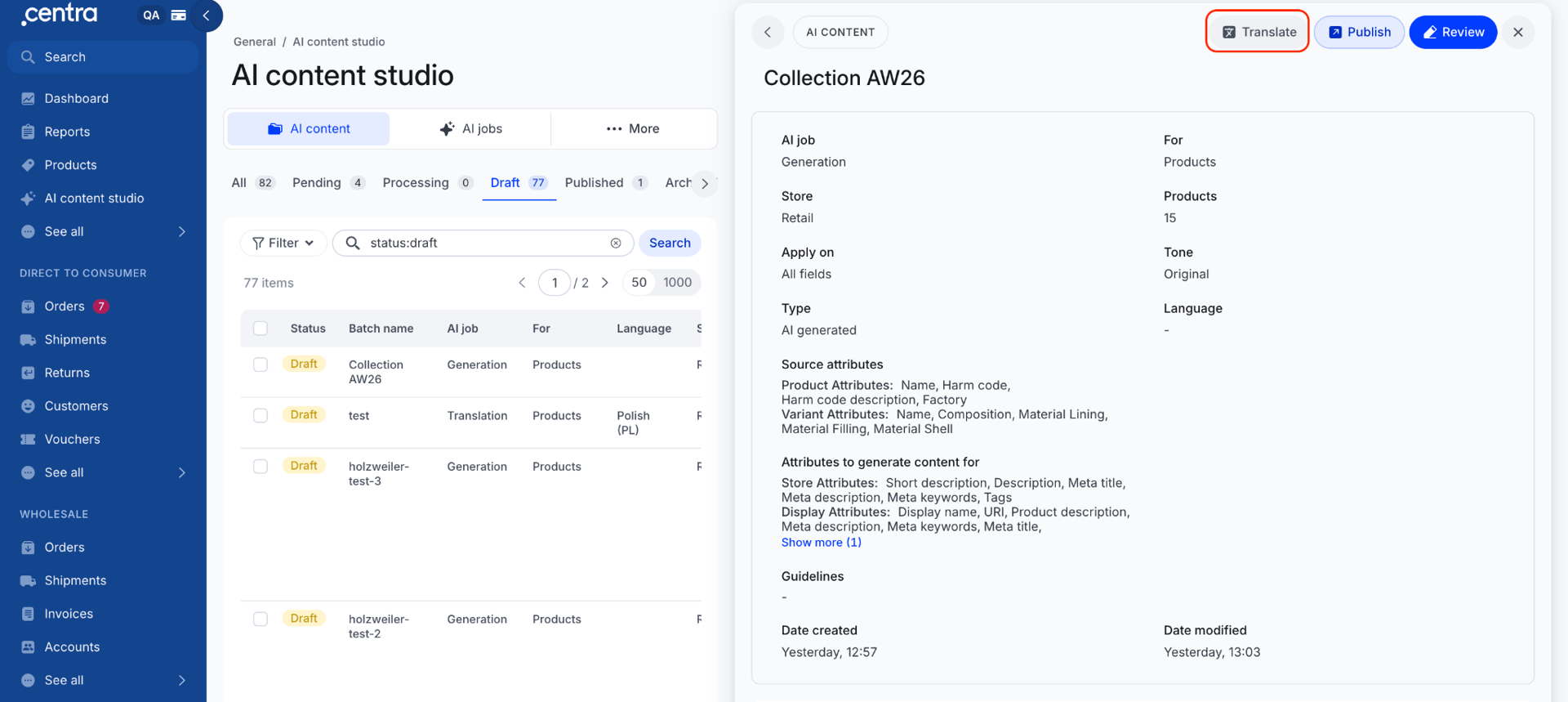
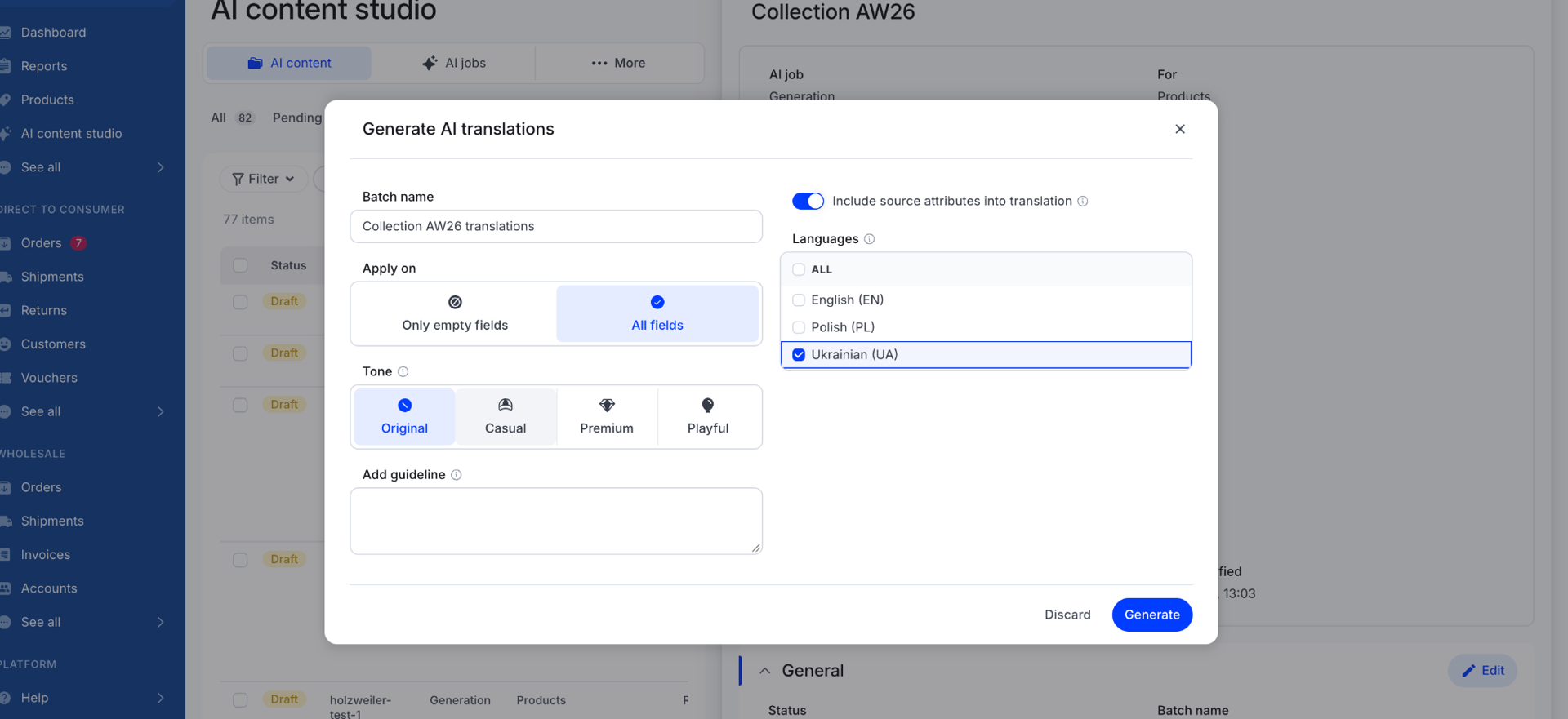
- In the Generate AI translations dialog, set your options (see the table below).
- Click Generate.
| Option | What it does |
|---|---|
| Batch name | Names the translation job. Centra suggests one based on the original batch, such as Collection AW26 translations. |
| Apply on | Only empty fields translates fields that have no value in the target language yet. All fields translates every field. |
| Tone | Original, Casual, Premium or Playful. |
| Add guideline | A one-off instruction for this translation run. |
| Include source attributes into translation | On: source attributes are translated too. Off: only the target fields are translated. |
| Languages | The languages to translate into. Tick ALL to select every available language. |
Your language guidelines apply to every translation, so set them up in the Guidelines tab before translating.
Free tier
The free tier includes up to 50 products for content generation and 50 products for translation.
FAQ
- Will generating content overwrite my live product copy? No. The AI only creates drafts. Your published text changes only when you click Publish selected or Publish all.
- Can the AI make up product details? It is instructed not to. It won't invent certifications, materials or measurements, and it keeps numbers, compositions, care symbols and SKUs exactly as they appear in your data. Still review drafts before publishing, especially for products with sparse attributes.
- Why wasn't one of my products included in the batch? Archived and canceled items are skipped automatically. Products without a store or display are also excluded unless you let Centra create them.
- Which images does the AI look at? Media activated on the display first, then media on the variant, then media on the product.
- Can I stop halfway through adding context and come back? Yes. Context saves automatically. Find the batch under AI content with the status Pending.
- How do I get better results?
- Add up to 5 style references that represent your best copy.
- Select rich source attributes, such as composition and material.
- Use product context for details that only you know, such as inspiration or fit.
- Keep a short batch guideline for collection-specific direction.