How to configure Showroom payments with Stripe Wholesale Invoices and Stripe Checkout for B2B
About this article
Enabling Stripe payments in your Showroom allows your customers to pay for invoices directly in Showroom. This way your retailers can pay for their orders immediately and as easily as in any other online checkout. From your side, the configuration is minimal.
Important notes:
- Centra customer must create their own Stripe account to be able to use Stripe payments.
- The entity that the user can pay for is the invoice, not the order. We are always operating on invoices.
- An invoice can be paid by any user who is logged in. If you wish for someone that doesn’t have login credentials to pay the invoice you can either create a buyer profile for them, or send them the payment link directly from the payment provider.
- An invoice needs to be locked to be payable with Stripe.
How to configure Stripe payments for locked invoices in Showroom
- First, you will need your own Stripe account with basic configuration, enabled for payments in all countries and currencies configured in your Centra.
- Add a
Stripe Wholesale Invoicespayment plugin in your Wholesale Store and save it. Just like any other payment plugin, you can restrict it to a specific Pricelist, Market, Country or Locale. -
Click the newly added plugin and integrate it using the Connect with Stripe button:
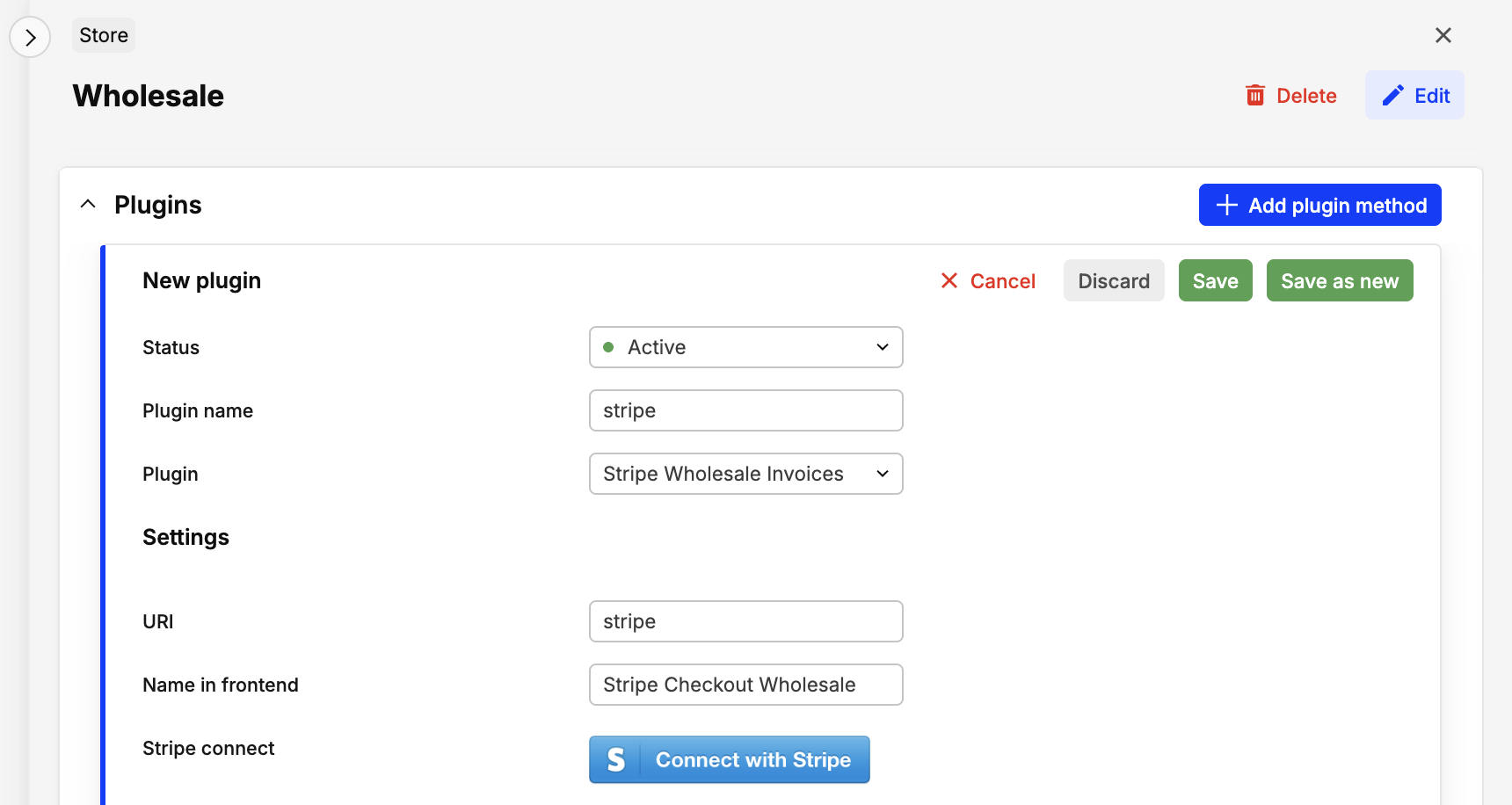
- If you're logged into your Stripe account, it should be connected automatically as soon as you accept the new connection.
-
Once that's done, the "Connect" button should disappear:

How to pay in Showroom with Stripe Wholesale Invoices plugin
-
Once the new order is confirmed, and Centra admin expedites it (or it's expedited automatically), you need to create an invoice in Centra > Wholesale > Orders > [select order] > [select shipment] > 'Invoice'
-
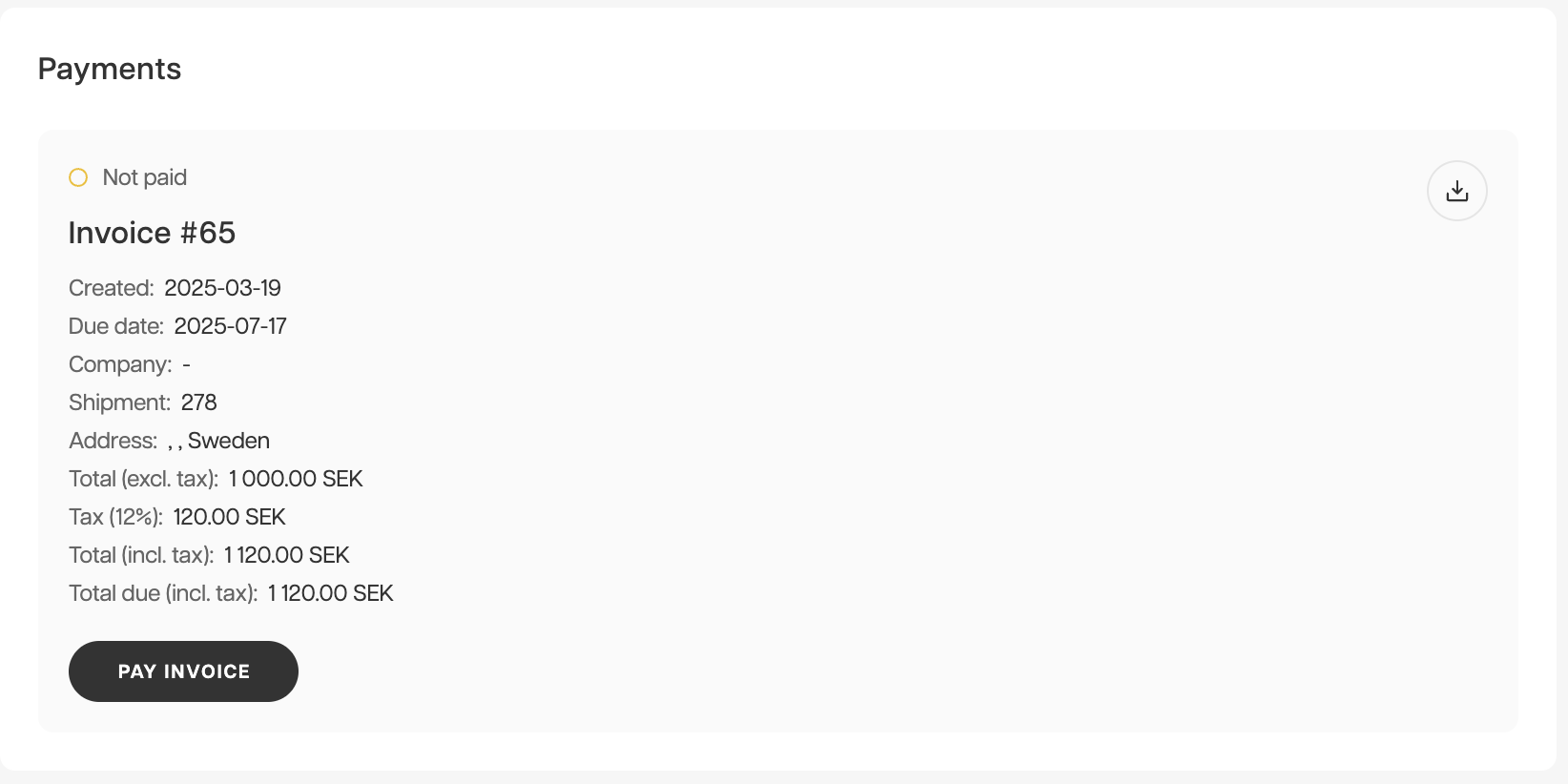
Once the invoice is created and locked, inform your buyer. They can then see it at the bottom of their Order page:
-
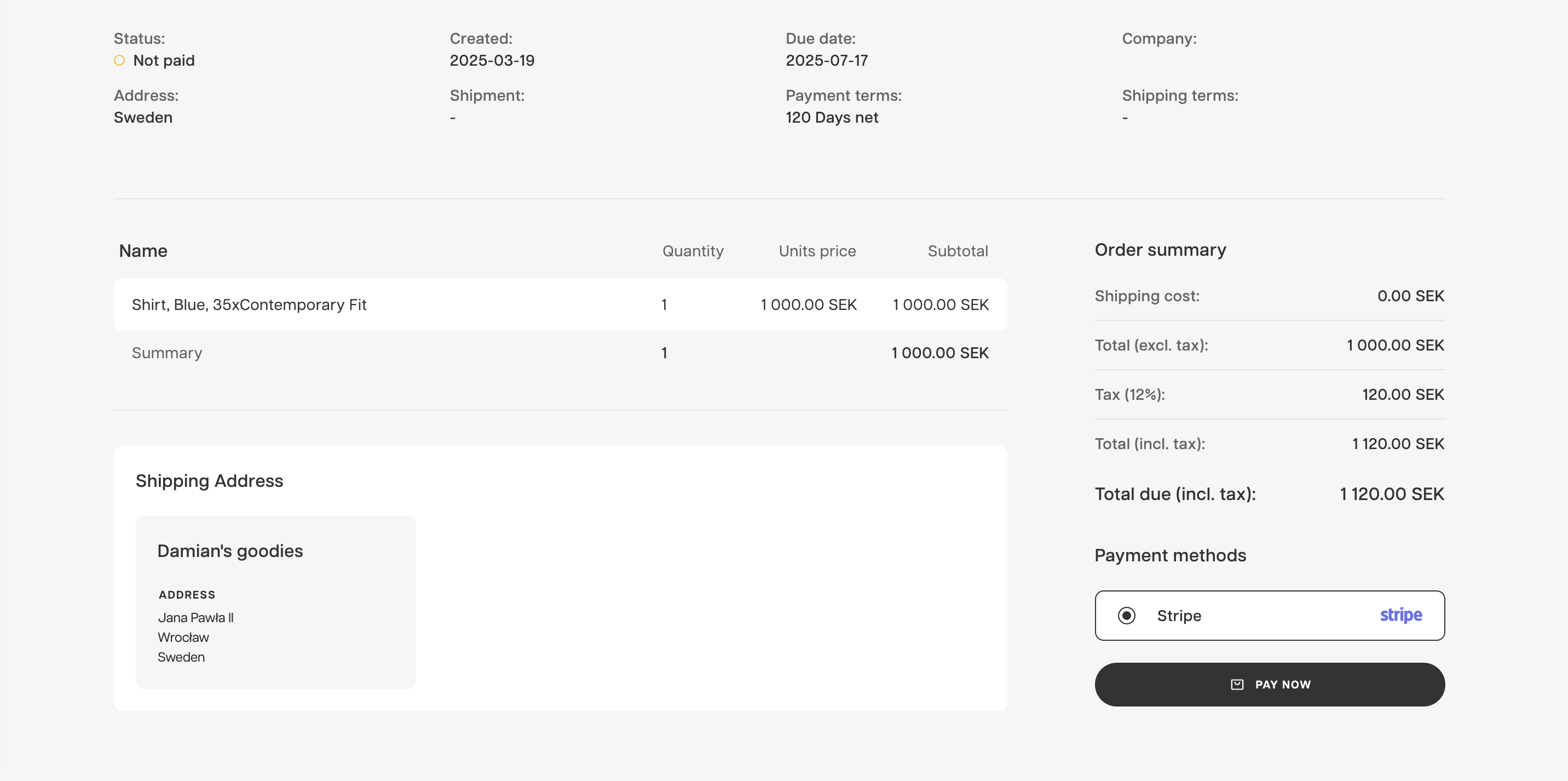
On the next page, they can see full invoice summary and can proceed to PAY NOW:
-
They will be redirected to the Stripe page. When in testing mode, you can use any of the testcard numbers with any details:
- VISA:
4242 4242 4242 4242 - Mastercard:
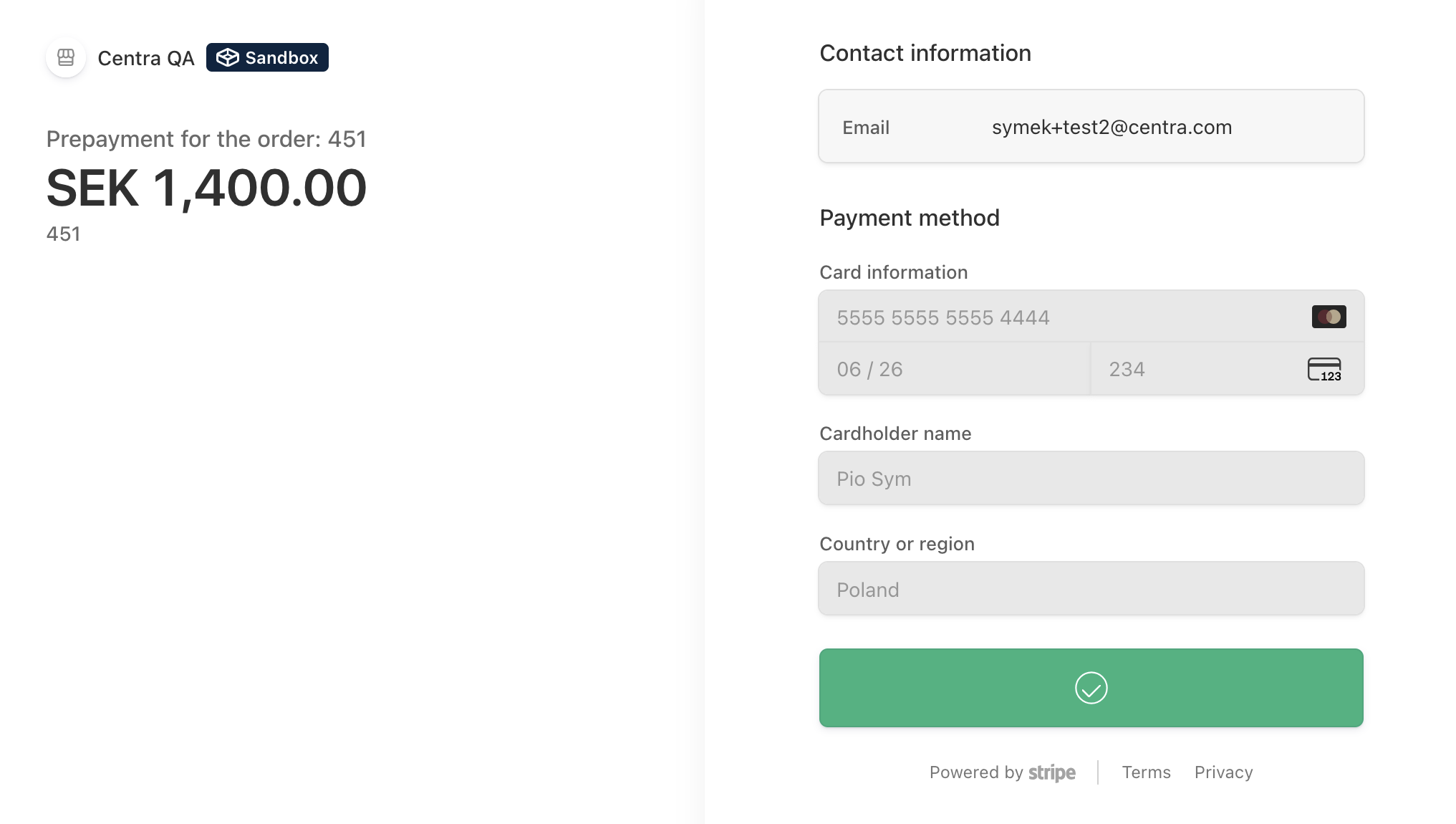
5555 5555 5555 4444 - American Express:
3782 822463 10005
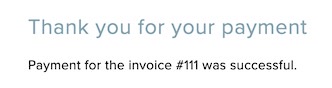
Once completed, the customer will be redirected back to Showroom.
- VISA:
-
Congratulations, your invoice is paid!
Please remember that the invoice needs to be locked in Centra, before it can be paid by the buyer using Stripe in Showroom. If the invoice is not locked, the Pay with Stripe button will not be displayed on the invoice.
Prepay Showroom orders using Stripe Checkout plugin
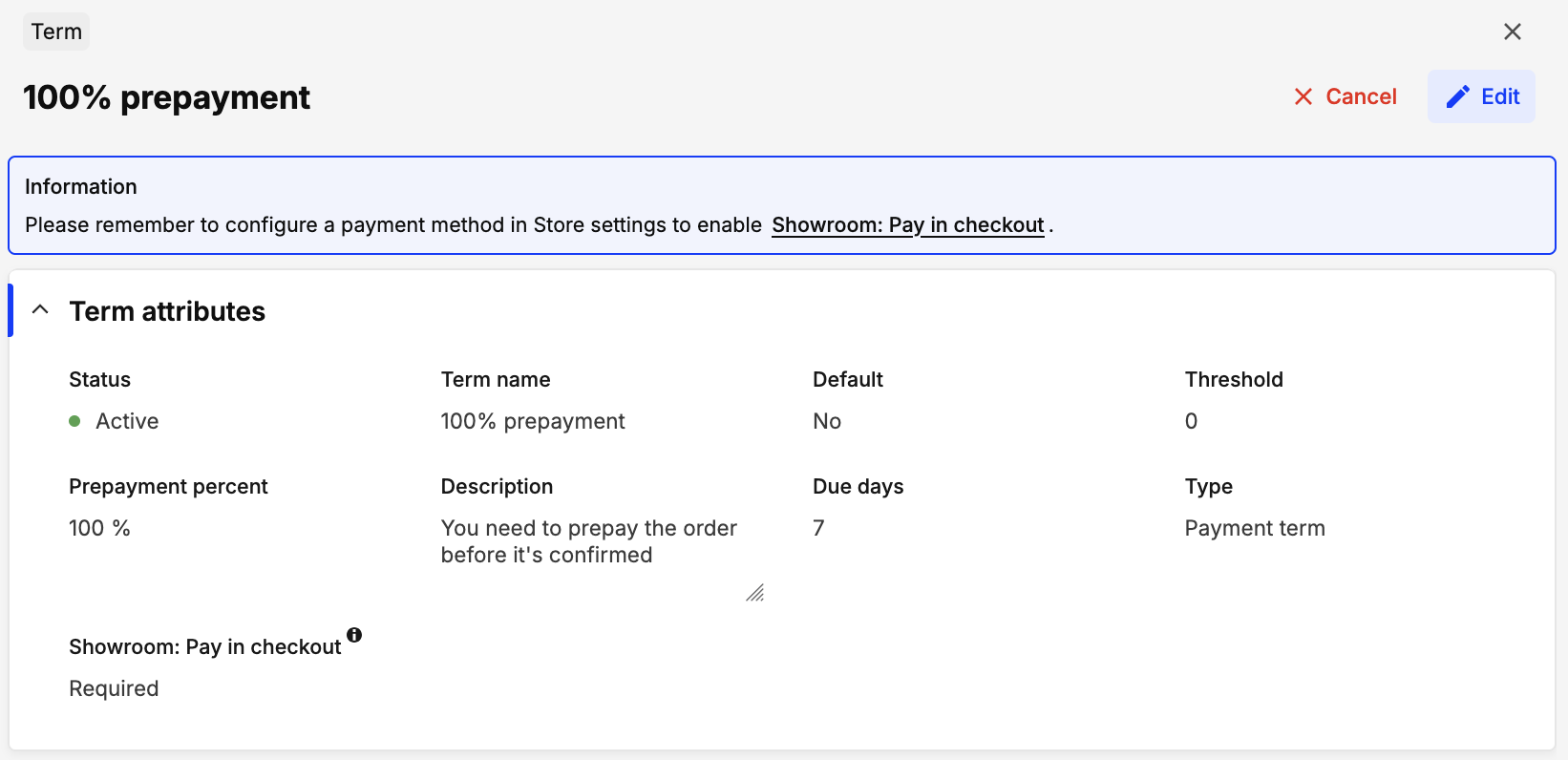
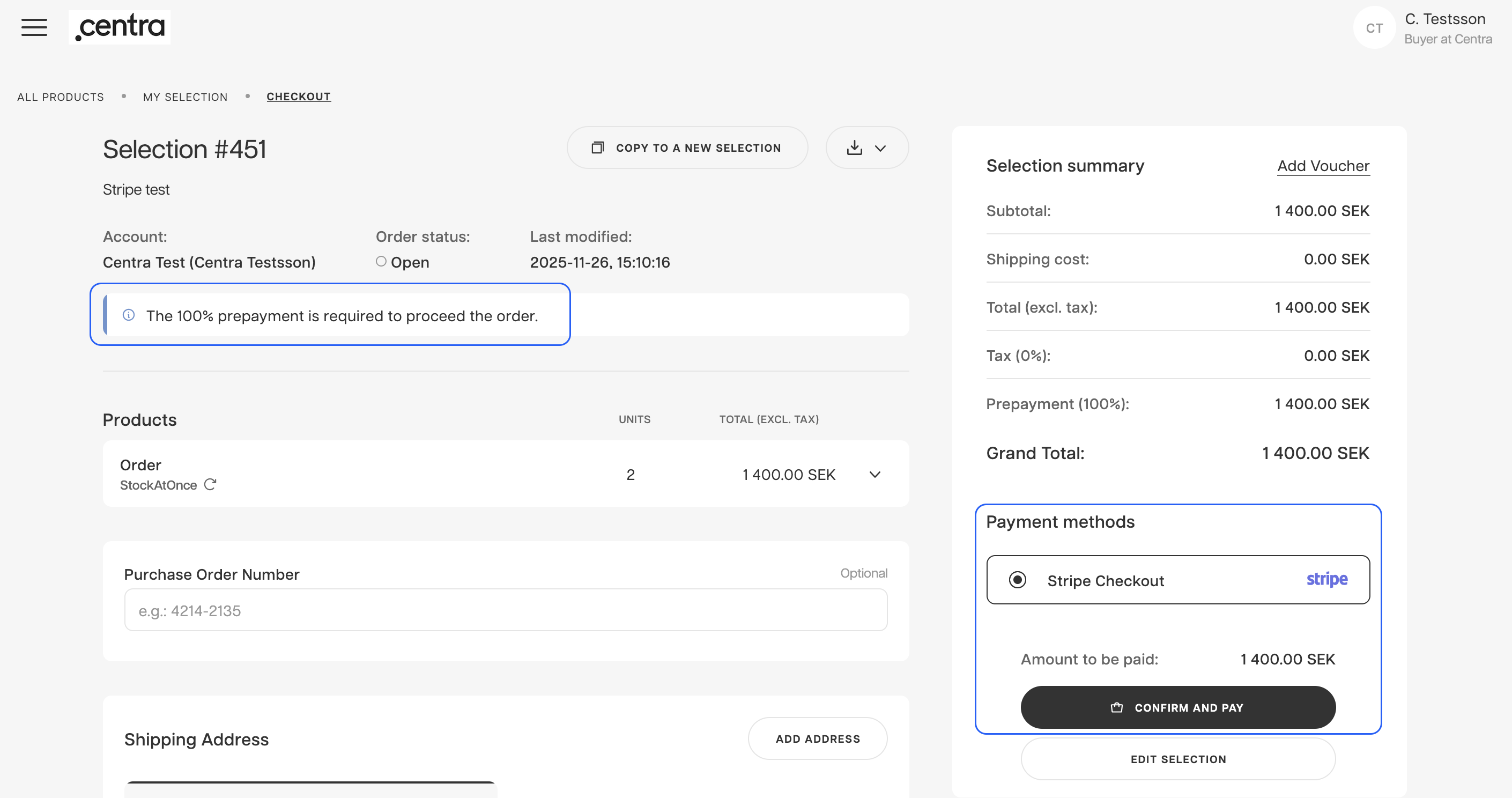
Another way to use Stripe to pay for the order in Showroom is to configure the Stripe Checkout payment plugin, and then require 100% prepayment using a Payment Term. This allows you to pay for the order before an invoice is created. You can of course require a lower percentage of prepayment in your scenario.
-
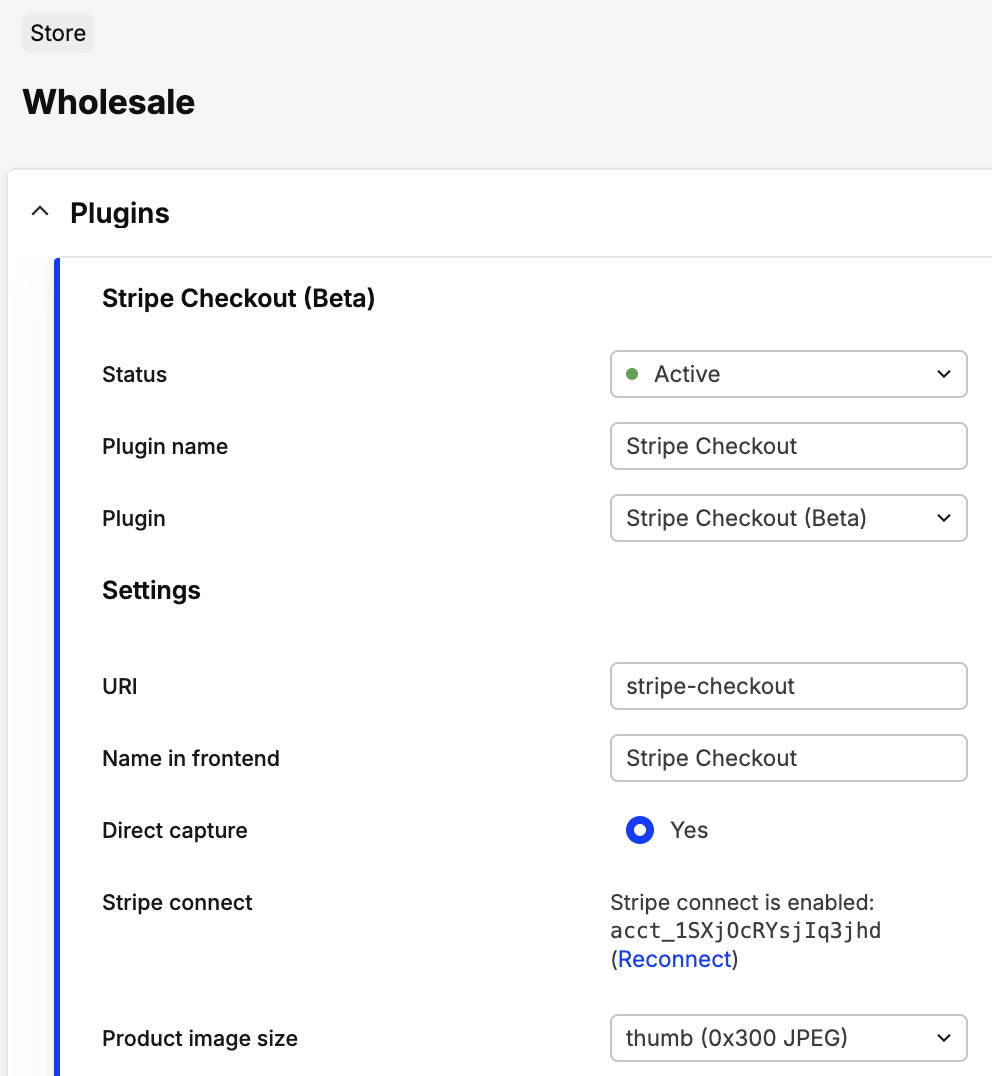
Start by ensuring your Stripe Checkout plugin is active and connected:
-
Then, add a new Payment Term in AMS -> Wholesale -> More -> Terms
-
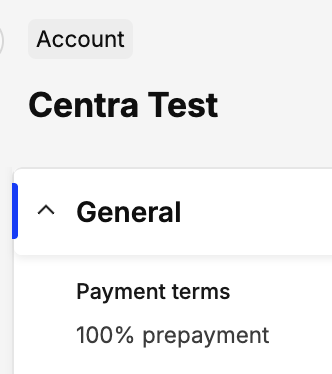
Make sure the new term is selected on your Account setup:
-
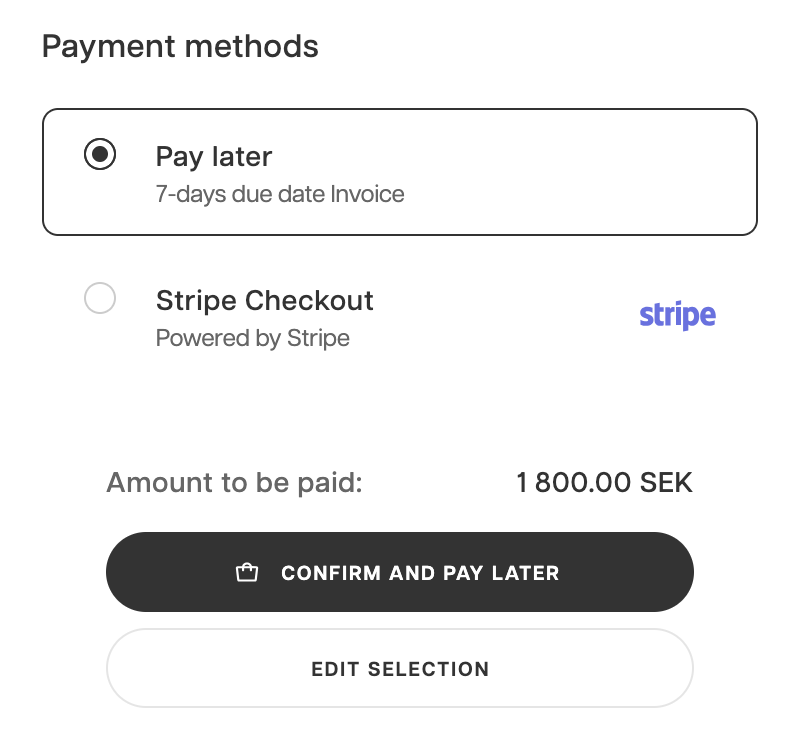
Finally, create a selection in your Showroom and proceed to checkout. You will be asked to pay for the 100% of the order value:
-
Proceed through Stripe payment as usual, in QA you can use the card details listed above:
-
Congratulations, your order is paid!
Combining both Stripe payment methods
Since Stripe Checkout can be used for pre-payment, and Stripe Wholesale Invoices allows you to pay for locked invoices, you can combine both above methods:
- Activate both Stripe Checkout as well as Stripe Wholesale Invoices payment plugins in your B2B store. You can connect them both to the same Stripe account if you wish.
- Change your 100% payment term to: Showroom: Pay in checkout: Optional from "Required".
This way, when you proceed to checkout in Showroom, you will have both options to pay now or later with invoice!